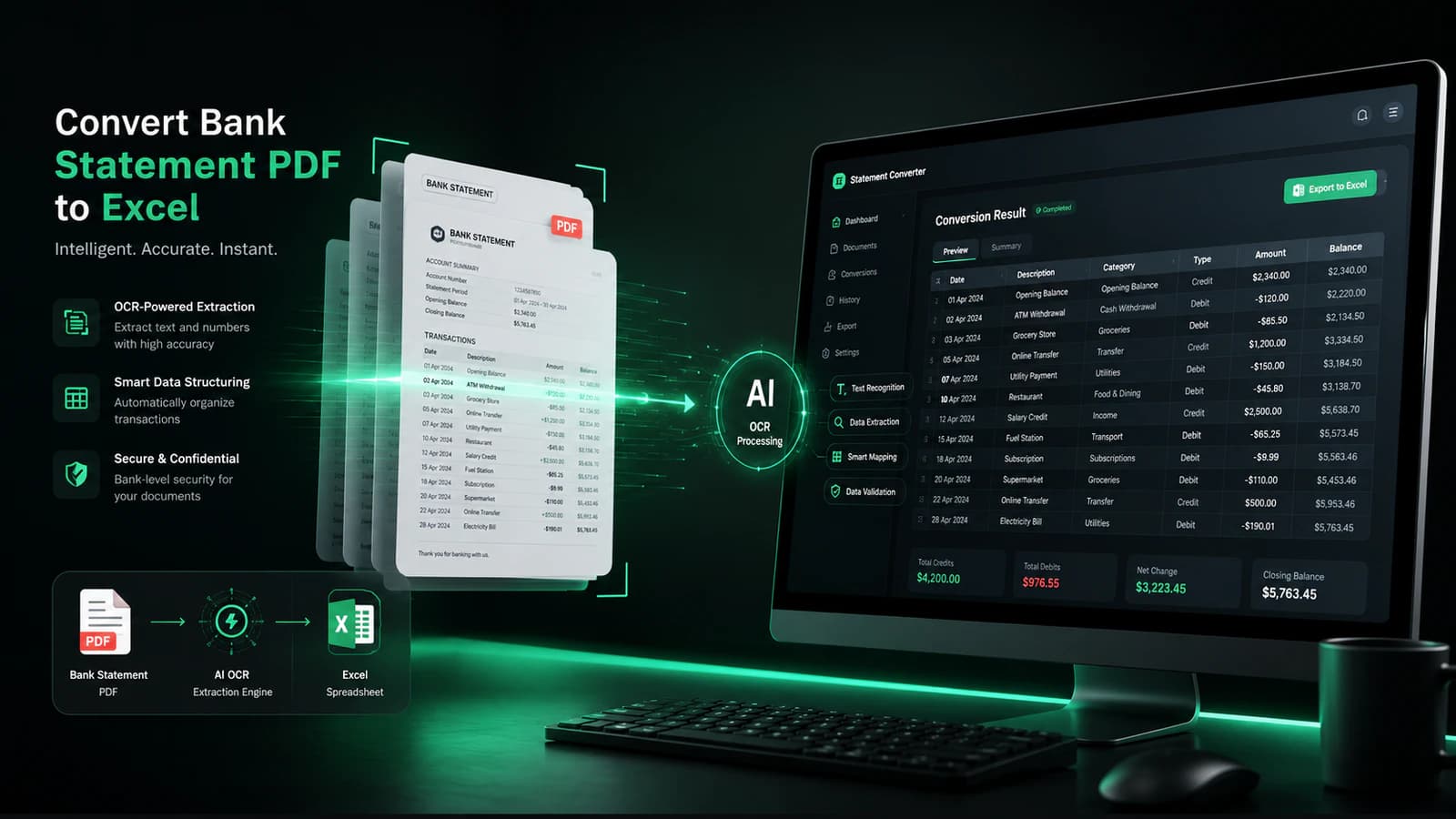
Introduction: Why Convert PDF to Excel?
Core problem: manual data entry from PDF bank statements is slow and error-prone -
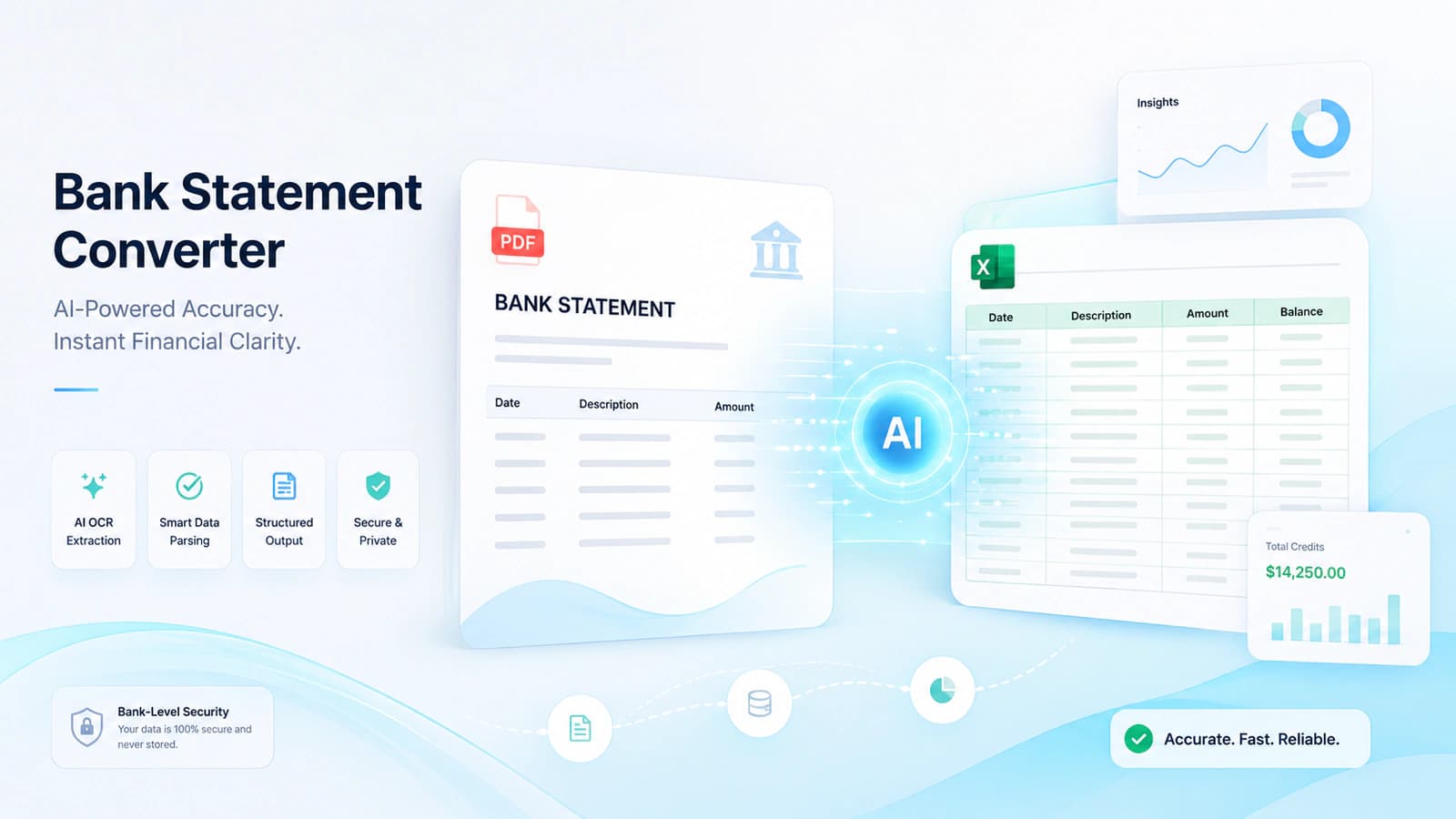
Solution: PDF to Excel converters automate data extraction and structuring
Key users: accountants, auditors, business owners, financial analysts
Key benefits: accuracy, automation, time-saving
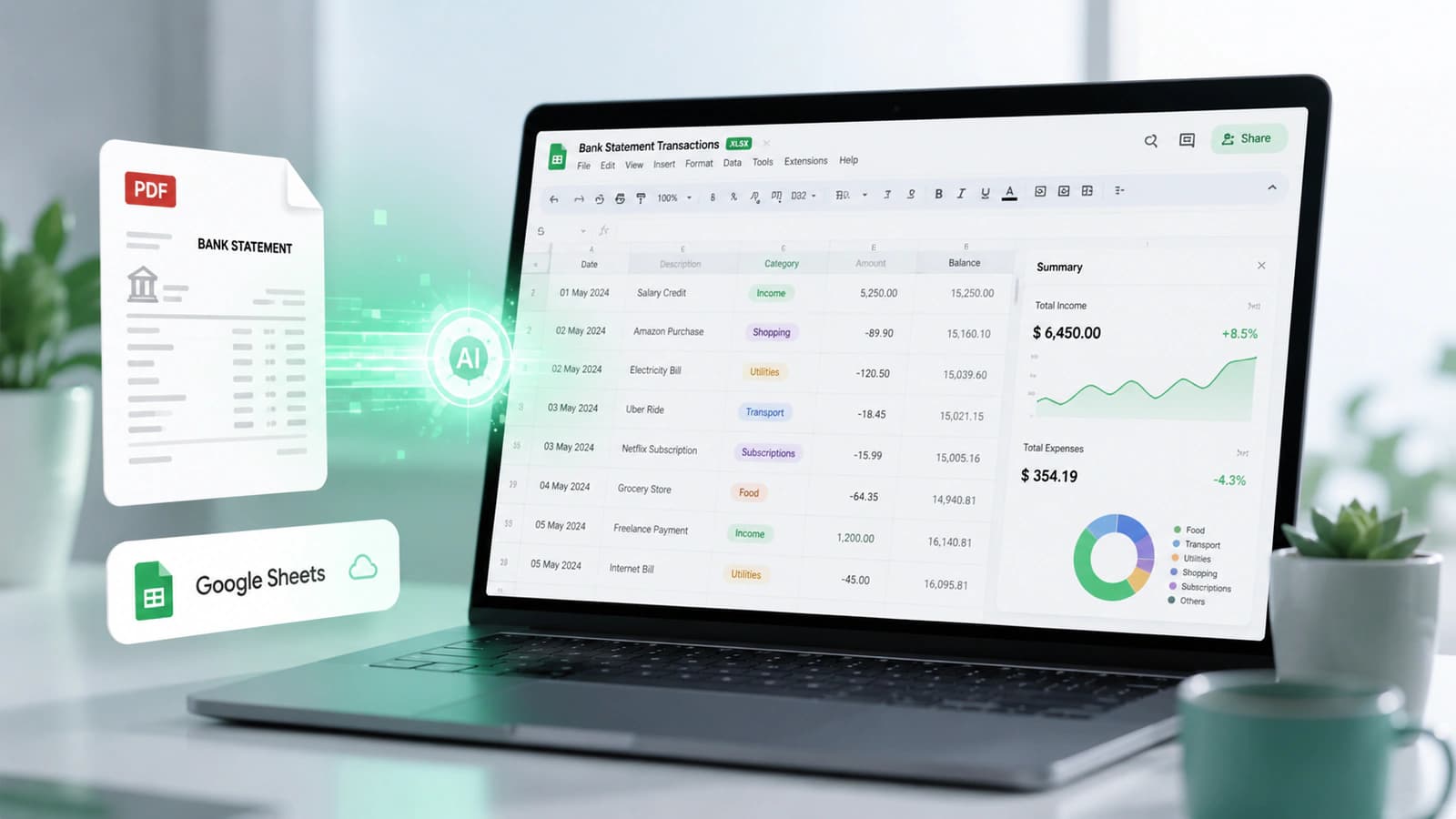
Output formats: Excel (XLSX), CSV, Google Sheets -
Core transformation: static PDF → structured, editable financial data
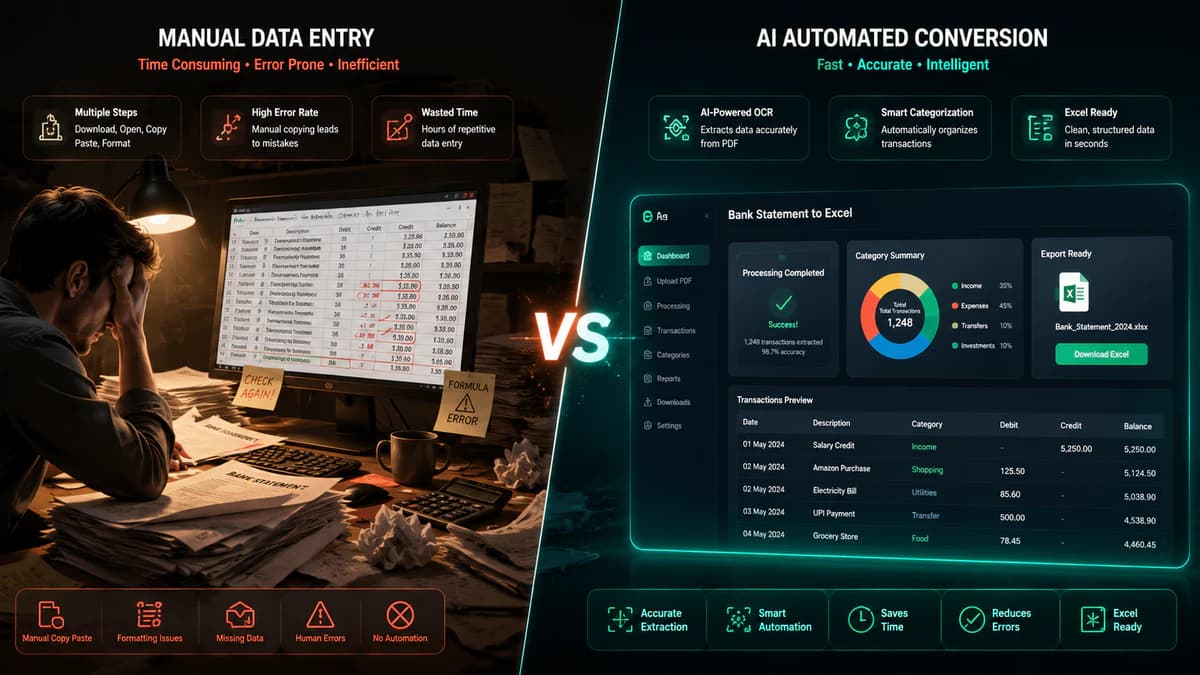
It is really painful to copy all the transactions of the bank statement line by line into Excel for some accounting and analytical tasks. Manual data entry is slow, error-prone, and mentally exhausting. A single bank statement can take hours, and when you are dealing with multiple bank accounts of your many clients, you can imagine the scale of hard work.
Here comes the natural need for PDF to Excel converters, and that's why these are getting popular these days. Instead of just a photocopier, these modern tools extract transaction data like dates, descriptions, amounts, and balances, and transform these into structured data like Excel (XLSX), CSV, or even Google Sheets
There are various use cases of this converted data, like accountants rely on clean Excel data for reconciliation and bookkeeping, auditors need structured transaction records for sampling and verification, business owners depend on accurate spreadsheets for budgeting, cash flow tracking, and reporting, and financial analysts use this data do finacial analysis and projections.
What Does “Convert PDF to Excel” Actually Mean?
Conversion = transforming unstructured PDF data into structured Excel format
PDF: static, non-editable, visually structured
Excel: dynamic, editable, row-column based
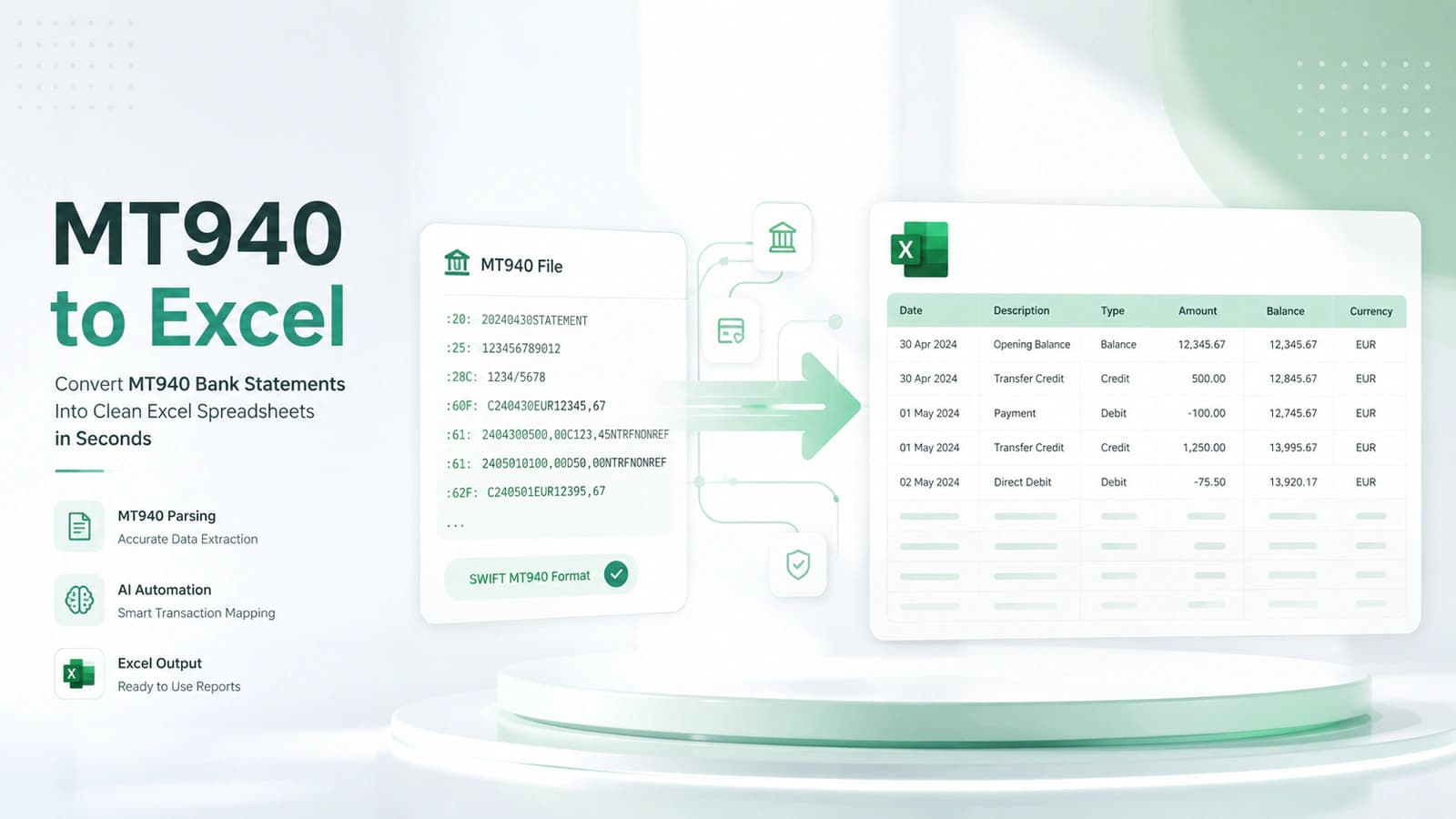
Extracted data: transactions (date, description, amount, balance)
PDF types: table-based (easy) vs non-table (complex)
Core technologies:
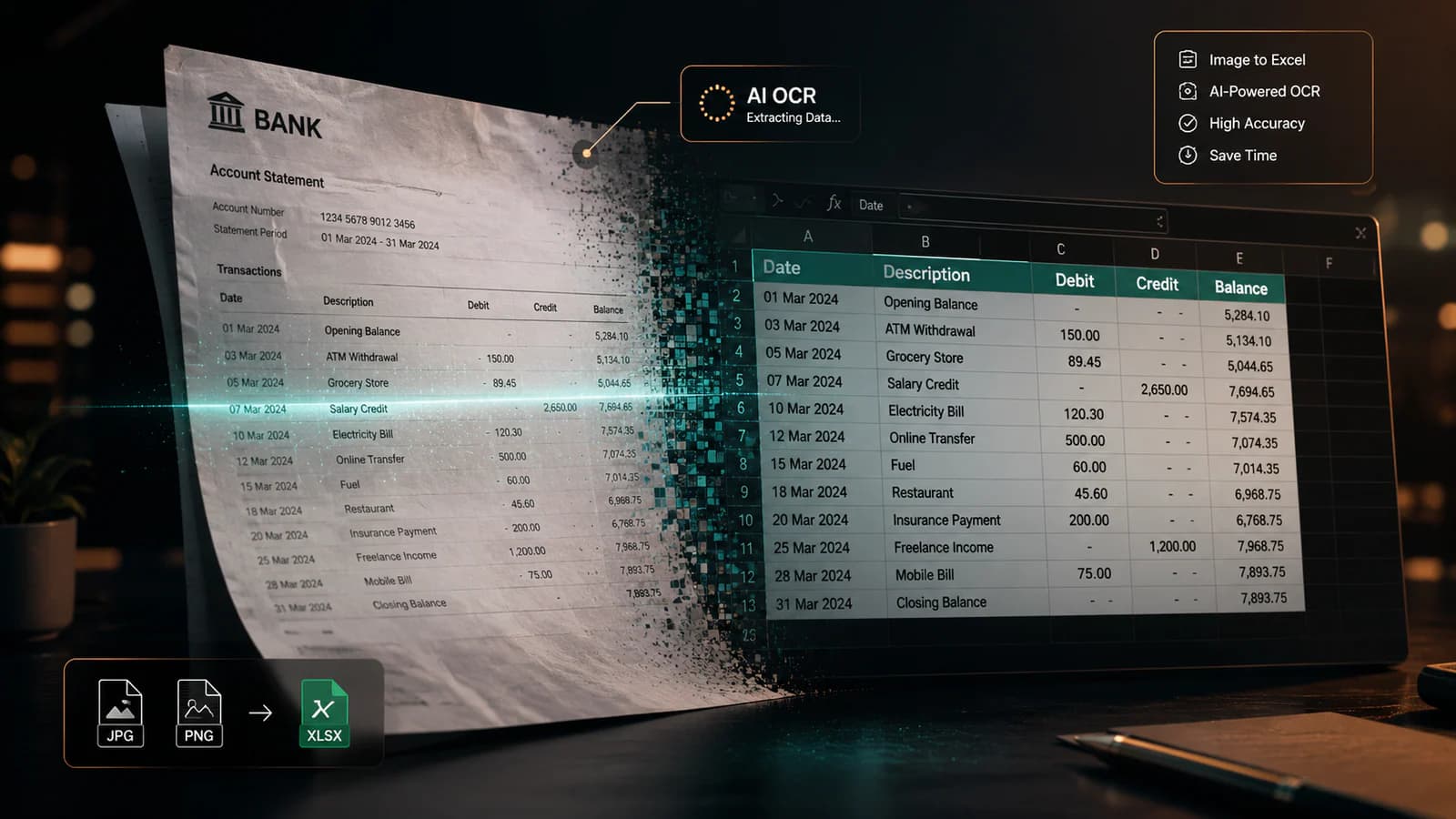
OCR → handles scanned PDFs
AI/ML → improves accuracy and pattern recognition
Table detection → structures data into rows/columns
In reality, “convert PDF to Excel” means extracting, interpreting, and restructuring financial data from a static document into a fully editable spreadsheet. It is a dynamic process and is like putting life into view, only unstructured data to transform it into structured, usable information.
Understanding PDF vs Excel Formats
The conversion process can be understood by first understanding the structure and purpose of each file format. PDF (Portable Document Format) has been designed for fixed layout and visual stability. In this format, data is in text blocks or in images and not in a structured table shape. This makes this file format difficult to edit.
On the other hand, Excel (XLSX / Spreadsheet Format) is for structured data, meaning properly organised into rows and columns, which facilitates editability and calculations. Excel spreadsheets support formulas, pivot tables, and analysis. Further data in spreadsheet format may easily be integrated with QuickBooks, Xero, and Google Sheets. So, converting PDF to Excel is not just copying content; it's like rebuilding data that can be analyzed and processed.
What Data Gets Extracted?
When a PDF bank statement is to be converted to Excel, the sole purpose is to extract tabular statement data in columns for the purpose of manipulation, as I mentioned above. The typical column data elements to be extracted include transaction date, description (Fees, transfers, deposits, withdrawals, party name, reference, and notes, etc.), amount (debit/credit), and running balance.
While converting PDF bank statements, the user may encounter two major scenarios. In one scenario, a PDF may be a table-based PDF, which means having clear rows and columns, and is relatively easier to convert using tools like Excel Power Query.
In the second scenario, the PDF structure may be non-table-based or complex, like descriptions on multiple lines and mixed layouts or sections. In such a case, an advanced cleanup and parsing is required to convert the file. That's why conversion accuracy mainly depends on document format.
Key Technologies Behind Conversion
To convert a PDF of any type, powerful technologies are working together, such as:
1. OCR (Optical Character Recognition)
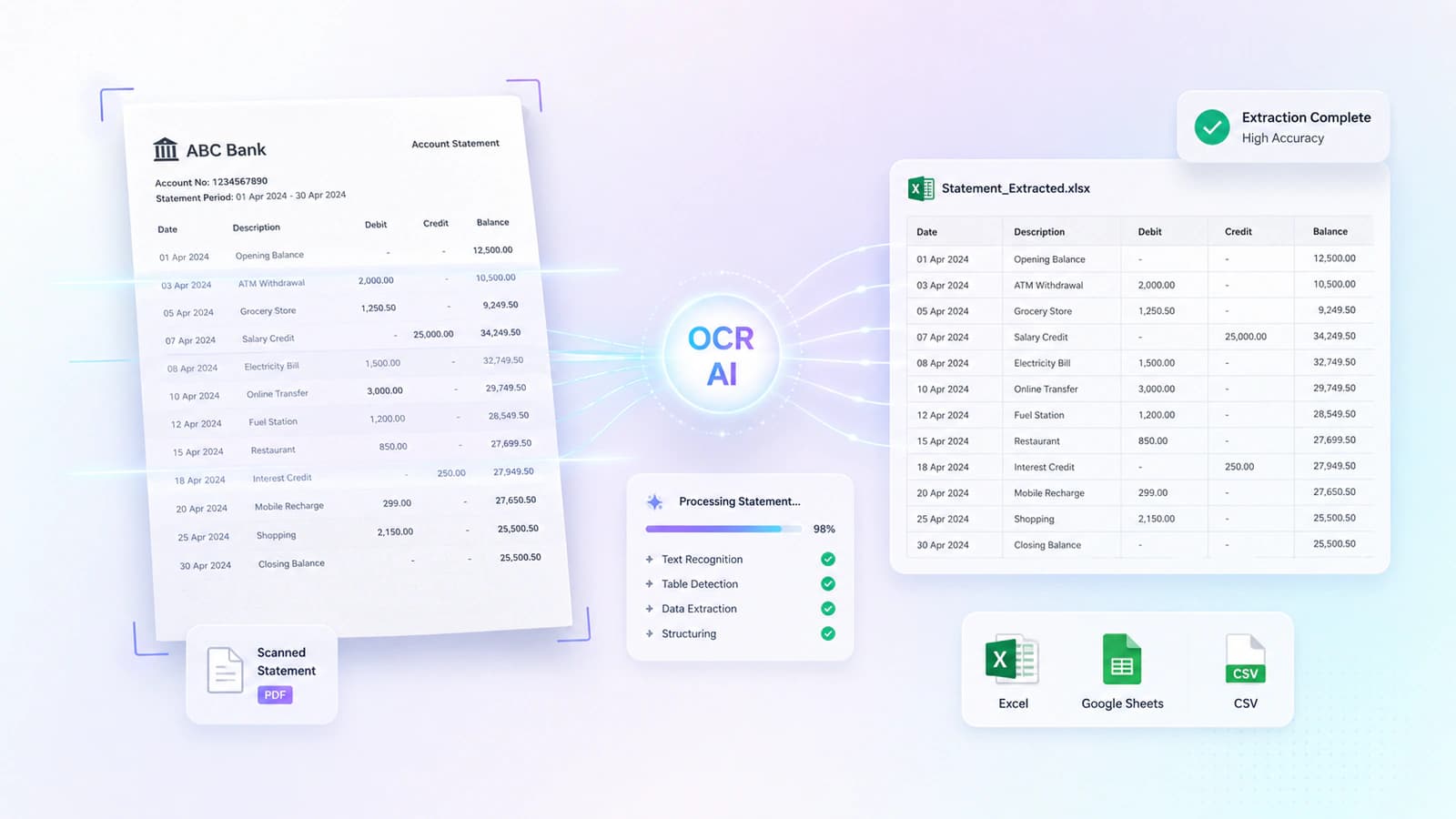
PDF may be a scanned one or generated from an image. To convert such a PDF, optical character recognition technology is required, in which characters and symbols are read from the underlying images and converted to actionable text for further processing. It has a use case where text from the document can not be selected directly.
2. AI / Machine Learning
In modern conversion tools like aibankstatementconvert.com, artificial intelligence and machine learning algorithms are being used aggressively to identify patterns in bank statements. This tech is capable of recognizing transaction structures across different bank formats. With usage, its accuracy improves gradually as algorithms learn from patterns.
It can successfully handle different currencies. As I have discussed above, different banks construct PDFs in varying layouts, so tweaking tools for each bank is nearly impossible, as there are thousands of banks globally. Here, machine learning solves challenges like layout inconsistencies and multi-page statements.
3. Table Detection & Parsing
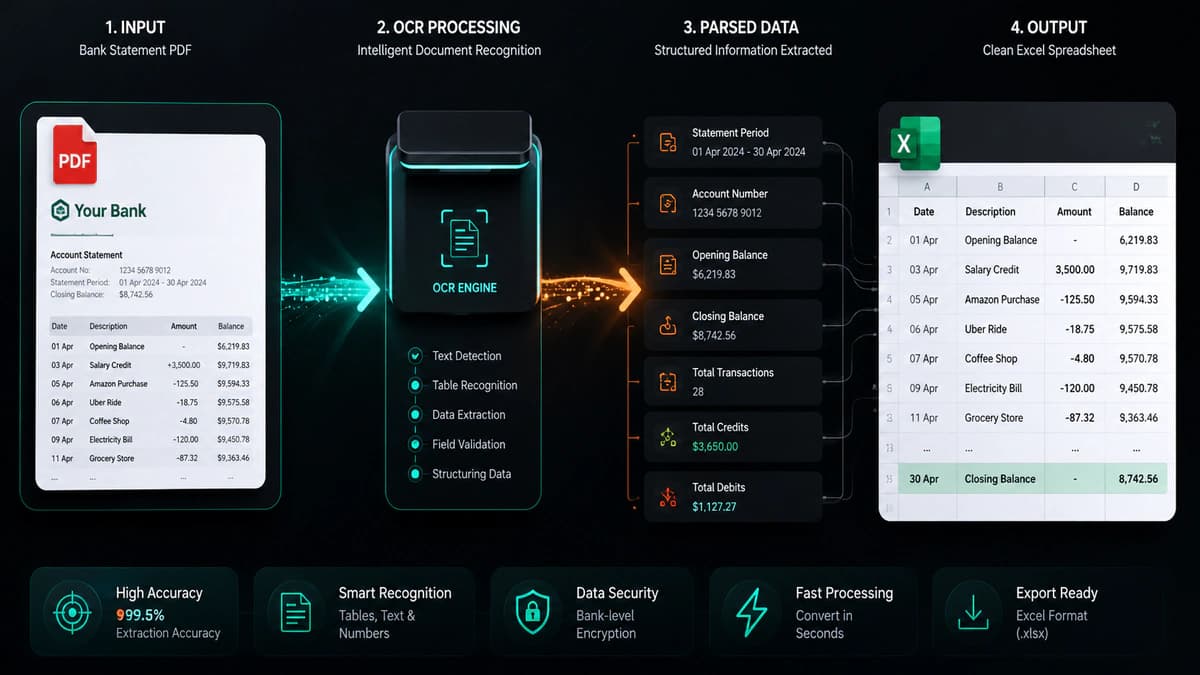
This functionality of the conversion tools serves as the main core workaround. Financial data is, after all, in tables in the bank statements. As I have already discussed, PDFs may be table-based and non-table-based, so transaction table detection and parsing are quite a challenge in a wide variety of PDFs having varying layouts from different banks across the globe.
This table detection and parsing tech detects rows and columns. Table headers are marked and data relationships identified. Here, financial transaction elements are extracted like date, descriptions, amounts (debit/credit), and balance.
Types of PDF Bank Statements You May Encounter
Not all PDFs are created equal. According to me, the success of this Excel conversion depends on the format of the PDF you started with. As some PDFs are converted promptly while others may require OCR application before conversion, and some may even need manual adjustments, all these depend on the structure of the chosen PDF.
PDF types may include:
Text-Based PDFs
These are normally banks' system-generated PDFs with selectable digital text available in their structure. You can highlight and copy text. Often contains structured or semi-structured tables. Converters can directly read the data without needing OCR. These have minimal formatting issues. Bank statements directly from your online banking portal (like HSBC, Chase, or Standard Chartered) are usually in this digital format.
Scanned PDFs (Image-Based)
These are the most challenging ones, as there is no selectable text (everything is an image). These may have been created by scanning printed bank statements. These PDF files have many issues, such as distortions, skewed text, or low resolution.
Since there is no actual text layer, tools have to use OCR to extract text from PDF. But this extraction has challenges like incorrect character recognition (e.g., “8” read as “B”), missing/merged columns, and formatting inconsistencies.
Complex / Multi-Format Statements
These PDF files are the most comlex like these may have multi-line transaction descriptions, multiple sections (credits, debits, summaries), inconsistent layouts across pages, and different formats for different banks.
Due to these reasons, dealing with such statements is quite difficult. These PDFs require advanced parsing and pattern recognition. Tools must identify where one transaction ends, and another begins, separate descriptions from amounts, and handle variations in formatting.
Some examples of formatting variations are a single transaction spread across two lines, a running balance appearing in different positions, and mixed currencies in the same statement, etc.
Modern tools use AI and machine learning algorithms to tackle the above issues and more, like broken rows and misaligned columns, etc.
Methods to Convert PDF to Excel (Step-by-Step Process)
Three main PDF types:
Text-based → selectable, high accuracy, easy conversion
Scanned (image-based) → requires OCR, lower accuracy
Complex/multi-format → hardest, needs AI/parsing
Accountants, analysts, and businesses use the best approach for PDF to Excel conversion depending on their PDF type (text-based, scanned, or complex). The chosen methods are as follows:
Method 1: Using Online PDF to Excel Converters
Online tools are the most popular and fastest ones. These platforms use AI, OCR, and table detection to automatically extract and structure data. Conversion steps are straightforward, upload your bank statement PDF, select output format (Excel / CSV / JSON ), let the tool automatically extract transactions, and download the structured file in the format selected.
This approach is fast and fully automated. Can handle multiple PDFs at once and successfully detects multiple currencies & different bank formats.
Despite advantages, this approach may have privacy concerns as sensitive financial data is uploaded online, so security may be compromised. Further free plans may have restrictions like file size and page limits.
Method 2: Using Microsoft Excel (Power Query)
For a ready-made, built-in solution, Microsoft Excel’s Power Query is a powerful option. To convert a PDF to Excel, use the following steps:
Open Excel → Go to Get Data → From File → From PDF
Import the PDF file
Preview detected tables
Select and load them into Excel
Method 3: Using OCR Tools (For Scanned PDFs)
As I have already discussed, it is quite challenging to deal with image-based or scanned bank statements. OCR technology is used here. To use this tool, insert or open the scanned PDF in the OCR tool, extract text from the image, paste it into Excel, and format it into rows and columns, if required.
Method 4: Manual / Semi-Automated Methods
This is the traditional approach and is still being used. Data is manually copied from PDF to Excel, and text is split into columns. Excel is rich in formulas, so applied accordingly to extract date, description, and amount. Formatted data may be transposed where needed. All the steps are manually performed, and some predefined Excel templates and macros may somehow automate this process.
Method 5: Advanced Tools & APIs
For deeper control and large-scale operations, advanced tools and APIs are used. These techniques allow users to design custom data extraction pipelines, carry out bulk processing across different banks, and can integrate APIs with internal systems to take full advantage, like achieving the highest flexibility and scalability.
So far, I have discussed many methods for the conversion from a PDF bank statement to Excel. A good converter performs the following functions to effectively extract financial information from the PDF statement. The table of transactions is the main repository in our statement that contains all the information we are looking for. The tool detects columns (date, description, amount, balance).
Extracted data needs to be processed before presentation to user, here comes AI and machine learning algorithms to clean & format data. After this step, the finalised information is validated, especially for accounting or auditing purposes. The validation involves a balance consistency check across rows, ensuring no missing transactions are present, correct debit/credit classification, and matching running balances with the original bank statement.
Common Problems & How to Fix Them
Common issues: formatting errors, missing data, negative values, OCR mistakes
Causes: poor table detection, multi-page PDFs, scanned documents
Fixes:
Text to Columns, formulas, manual cleanup
Use better tools (FinanceFileConverter, Formula Bot)
Validate data against the original PDF
The best tools can even use issues. Understanding these common problems and how to fix them can eliminate your hours of frustration and improve your accuracy, too. Common issues are:
Formatting Issues
One of the most common issues is a broken structure of PDF, as columns shifted incorrectly, merged cells resulting in multiple values in one cell, and misaligned rows. Why this happens is due to poor table detection, complex layouts / inconsistent spacing, or multi-line transaction descriptions.
To address this formatting issue, use text to columns in Excel to separate merged data, manually adjust column widths & alignments, use formulas (LEFT, RIGHT, MID) to extract correct values, or re-run conversion using a better modern tool with AI & machine learning support.
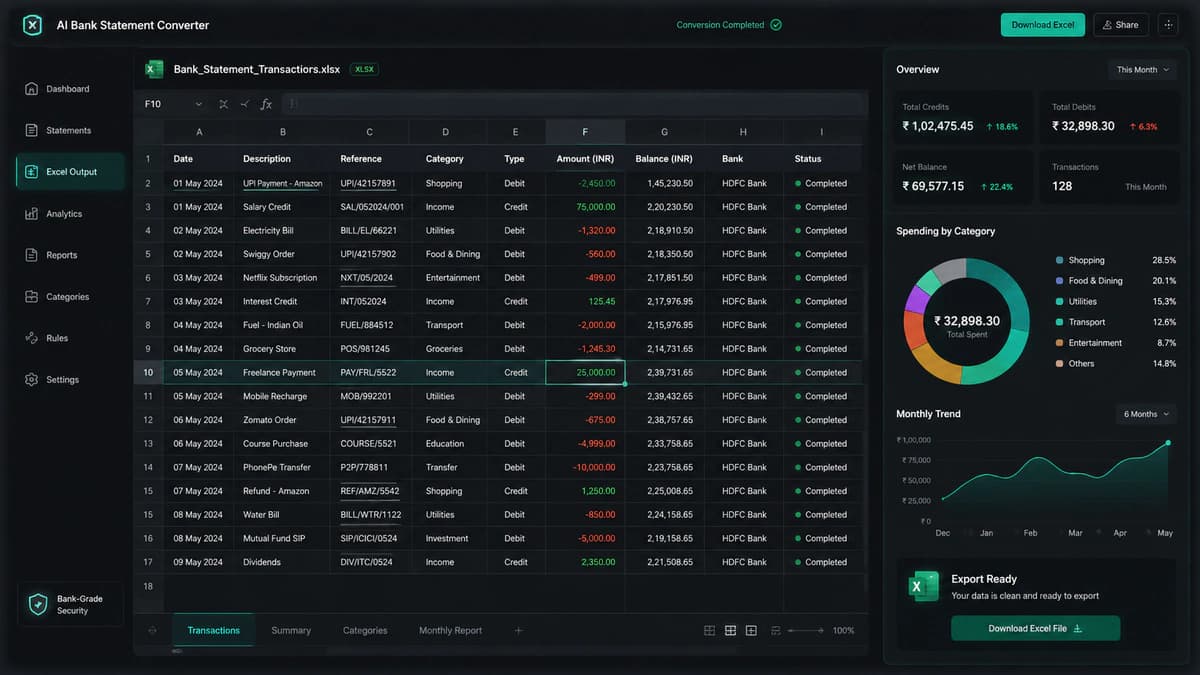
Missing Data
Conversion does not always produce desired results, issues always arise. It may happen that some transactions are missing from multi-page PDFs. The cause may be due to hidden or poorly structured tables or the limited ability of the tool.
To address this issue, ensure all pages are selected during upload, cross-check with the original PDF, or employ multiple extraction runs if needed.
Negative Number Errors
Sometimes in conversion, values like 9.95- appear instead of the original -9.95. Why is it, perhaps due to PDF formatting differences or Excel not recognizing trailing minus signs?
To fix this issue, you apply formulas in Excel to convert values into a proper numeric format.
OCR Errors
OCR mat produces faulty results like “8” read as “B”, “0” confused with “O” or decimal points ignored.
To address this issue, use high-quality scans and manually validate critical fields (amounts, balances).
Security & Privacy Considerations
Security factors: encryption, data deletion, GDPR compliance
Risk: uploading financial PDFs to online tools
Solution: use trusted or offline tools
Insight: Security is critical for professional workflows
When dealing with the financial documents that contain personal transactions and historical data, security is uncompromisable. While using an online PDF to Excel converter, this is one of the most overlooked aspects because the PDF file is rendered to a tool server and is processed there.
It should be ensured that online tools comply with the industry standard practices and procedures to safeguard users' financial data. One such measure is the adoption of Encryption (256-bit) technology. It ensures that files transferred between the user device and the tool server are encrypted usign industry standard protocol. Sticking to this guarantees a secure file transfer between machines. The tool should further ensure that if the file is to be kept on the server, then it should be in an encrypted form only.
Modern tools always stick to data deletion policies. Files are not kept on servers, and these are deleted from the server as soon as they are processed and converted to the desired format.
GDPR compliance is mandatory for EU-based services, which further brings in a strong layer for users' financial data security.
It is better to use offline tools, like in a corporate environment, which eliminates the risk of financial data mishandling by any stakeholder. Users should avoid uploading data to an unknown platform with no credible voice from users. The user should conduct some informed research to inquire about unknown tools to check their trustworthiness.
Use Cases: Why People Convert Bank Statements
Key users: accountants, analysts, auditors, businesses
Use cases:
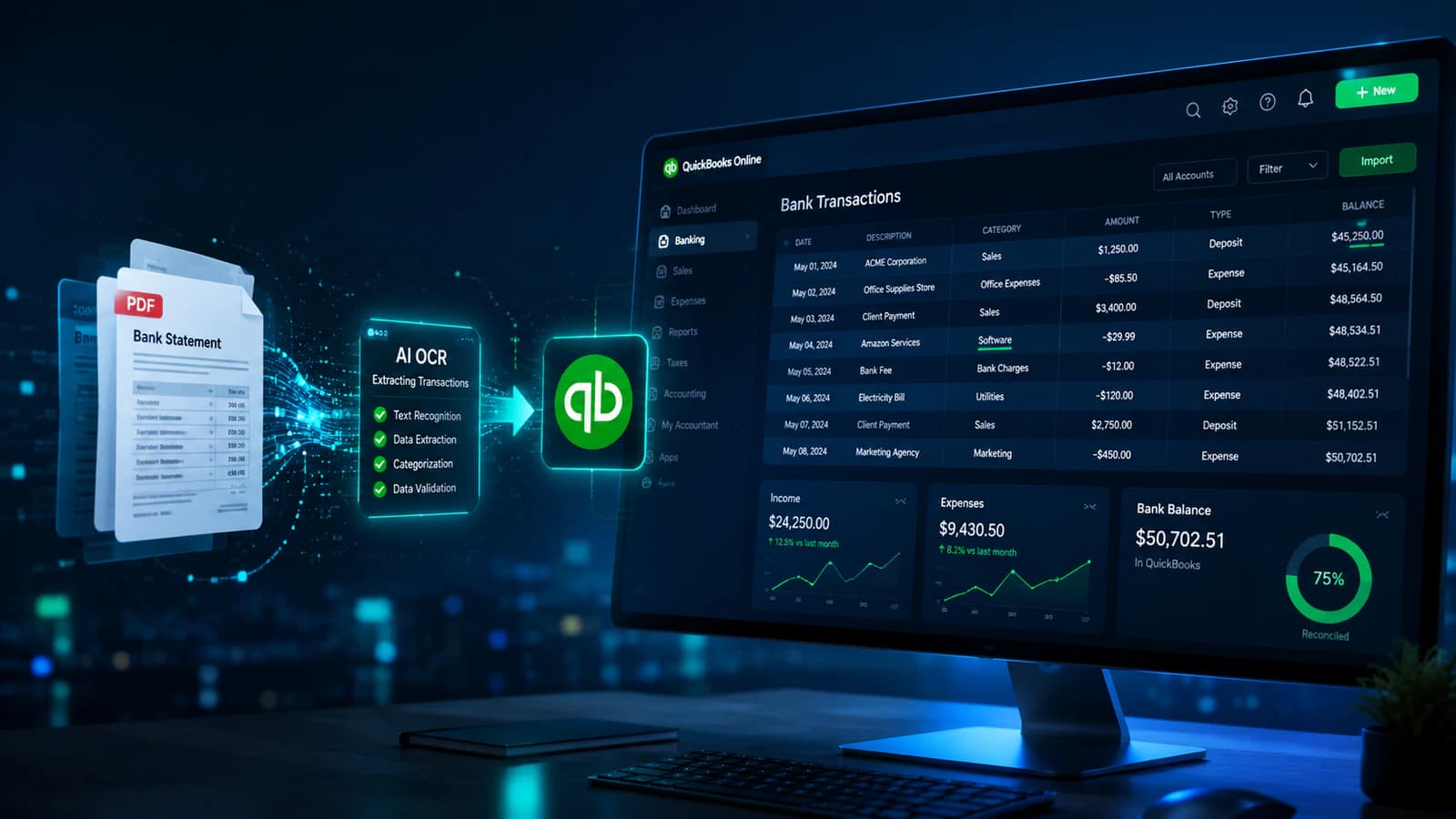
Bookkeeping (QuickBooks, Xero)
Financial analysis
Auditing
Reporting
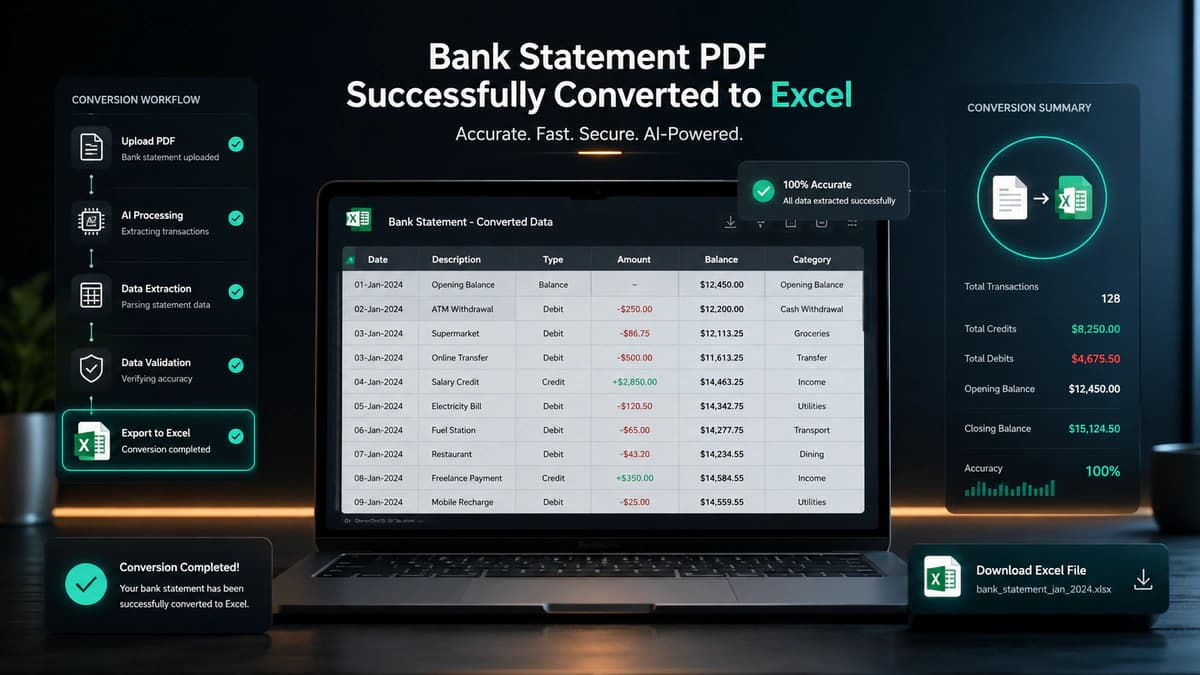
PDF bank statements, once converted to Excel, are used extensively across industries.
Accounting & Bookkeeping
This converted data may be imported into QuickBooks and Xero to reconcile transactions and automate bookkeeping workflows.
Financial Analysis
A financial analyst may prepare cash flow trends, track expenses & income, and build financial models in Excel.
Auditing
Auditors generate structured datasets to perform transaction sampling and to ensure compliance and accuracy.
Business Reporting
Business owners or managers may do budget planning, forecasting, and internal financial reporting, and structured data enables better decision-making.
Frequently Asked Questions (FAQs)
1. Can I convert scanned PDF bank statements to Excel?
Yes. Scanned or image-based bank statements can be converted using OCR (Optical Character Recognition) technology. OCR extracts text and transaction data from images and transforms it into structured Excel rows and columns.
2. What data is usually extracted from a bank statement PDF?
Most PDF to Excel converters extract transaction date, description, debit amount, credit amount, running balance, references, and account details. The output is usually organized into editable Excel columns.
3. Why is converting PDF bank statements to Excel useful?
Excel makes financial data editable, searchable, filterable, and ready for analysis. Businesses, accountants, and auditors use converted Excel data for bookkeeping, reconciliation, budgeting, reporting, and financial analysis.
4. What is the difference between text-based PDFs and scanned PDFs?
Text-based PDFs contain selectable digital text and are easier to convert with high accuracy. Scanned PDFs are image-based and require OCR technology, making conversion more complex and sometimes less accurate.
5. Is it safe to upload bank statements to online PDF converters?
It depends on the platform. Trusted tools use encryption, secure file transfer, automatic file deletion, and privacy compliance standards like GDPR. Always avoid unknown or untrusted converters for sensitive financial documents.
6. Can I convert bank statements to formats other than Excel?
Yes. Many modern converters support multiple output formats, including Excel (XLSX), CSV, Google Sheets, JSON, QuickBooks QBO, and accounting software-compatible formats.
7. What are the most common PDF to Excel conversion problems?
Common issues include merged columns, missing transactions, OCR mistakes, formatting errors, and incorrect negative values. These problems can usually be fixed using Excel cleanup tools, formulas, or better AI-powered converters.
Final Thoughts
According to me, the best approach to convert PDF to Excel depends on your specific needs. Use online AI tools for speed and automation. For simple, structured PDFs, use Excel Power Query. OCR is necessary where images or scanned documents are encountered.
Advanced tools are helpful where large-scale workflows are involved. Nowadays, automation is no longer optional as the volume of data is increasing day by day, so it has become essential for modern financial workflows, extending the automation footprint of a disciplined Bank Statement Converter.
Conversation0 Comments
Write a comment ↓Leave a Reply
Your email address will not be published. Required fields are marked *
Login Required
Please sign in to join the conversation.