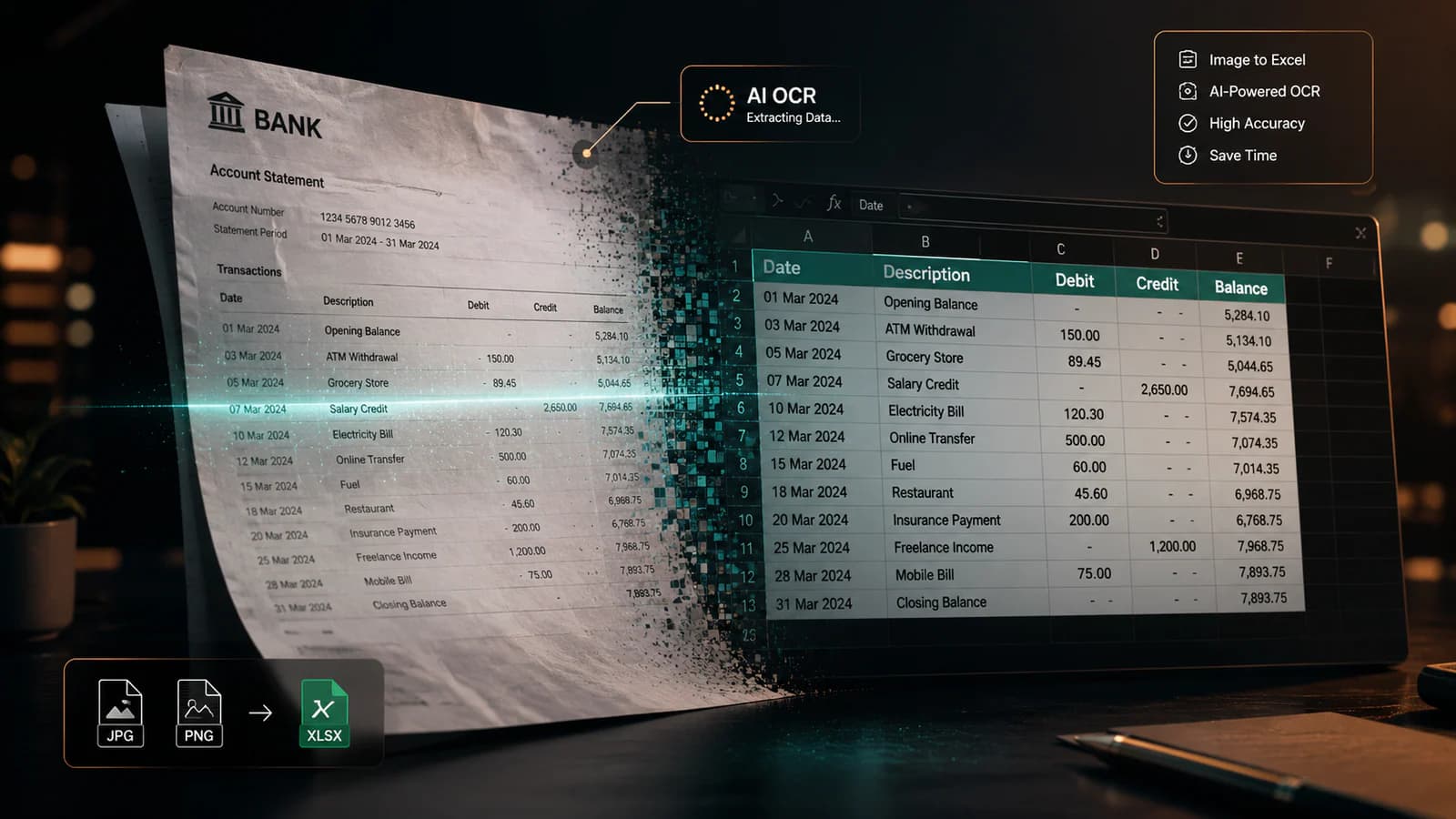
What Is an Image to Excel Converter?
Image to Excel converter = a tool that transforms visual data (JPG/PNG) into structured spreadsheets (Excel/CSV).
Core technology = OCR + table detection + AI-based data extraction.
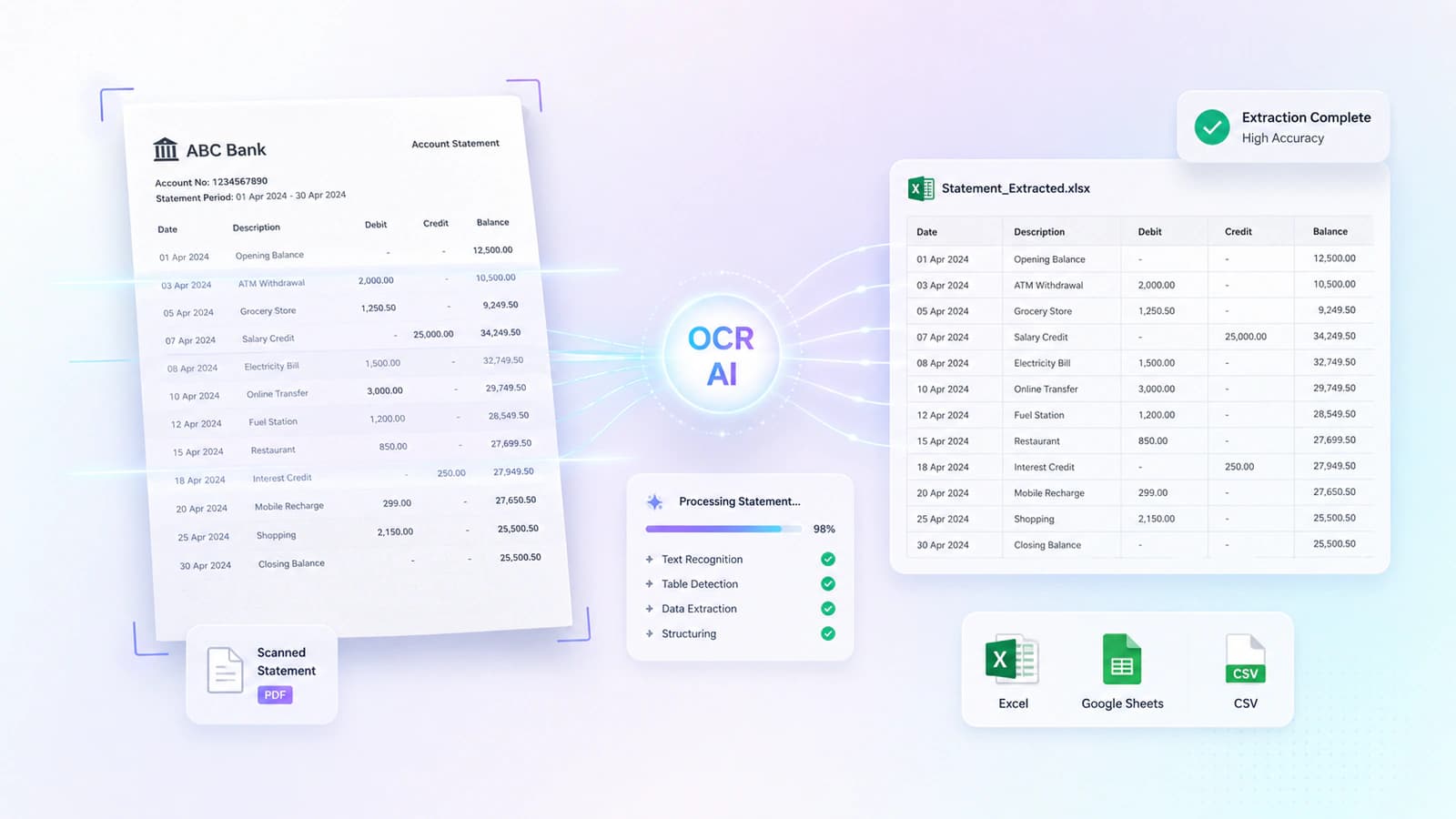
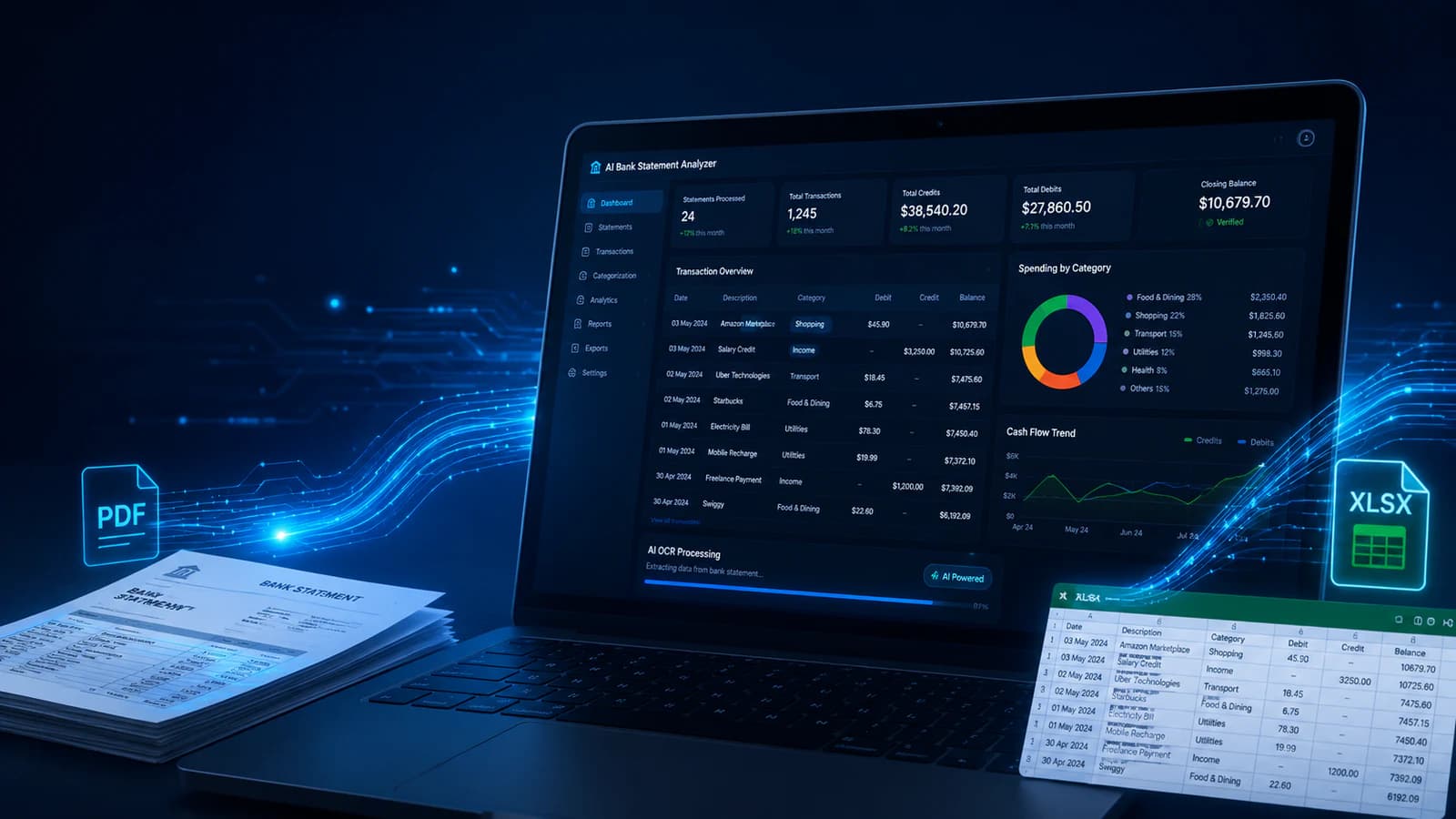
Workflow = Image → OCR processing → Data extraction → Structured Excel output.
Key distinction:
Image = unstructured (pixels)
PDF = semi-structured
Excel = fully structured (rows/columns)
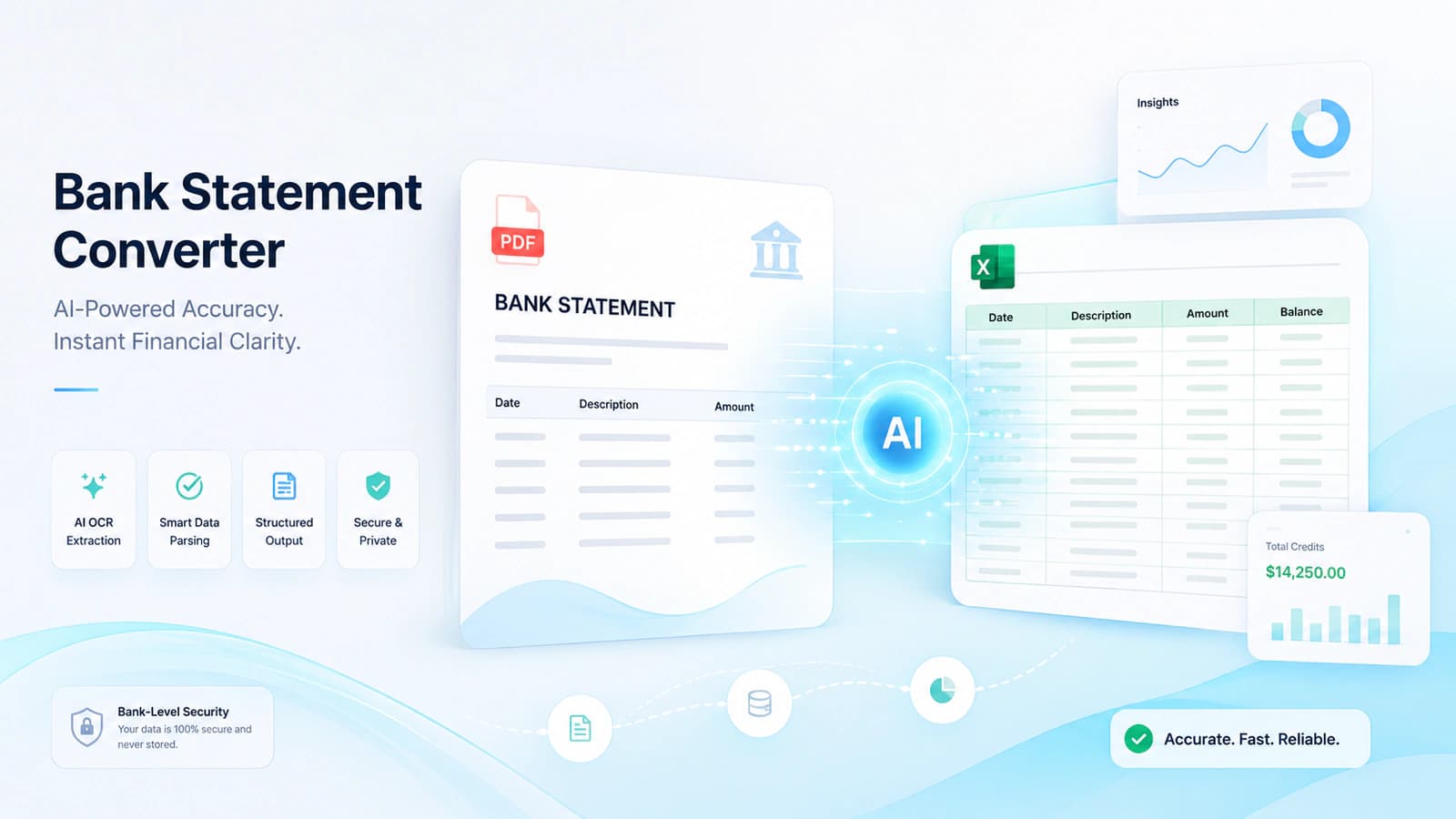
High-value use case = bank statement conversion for accounting, reconciliation, and financial analysis.
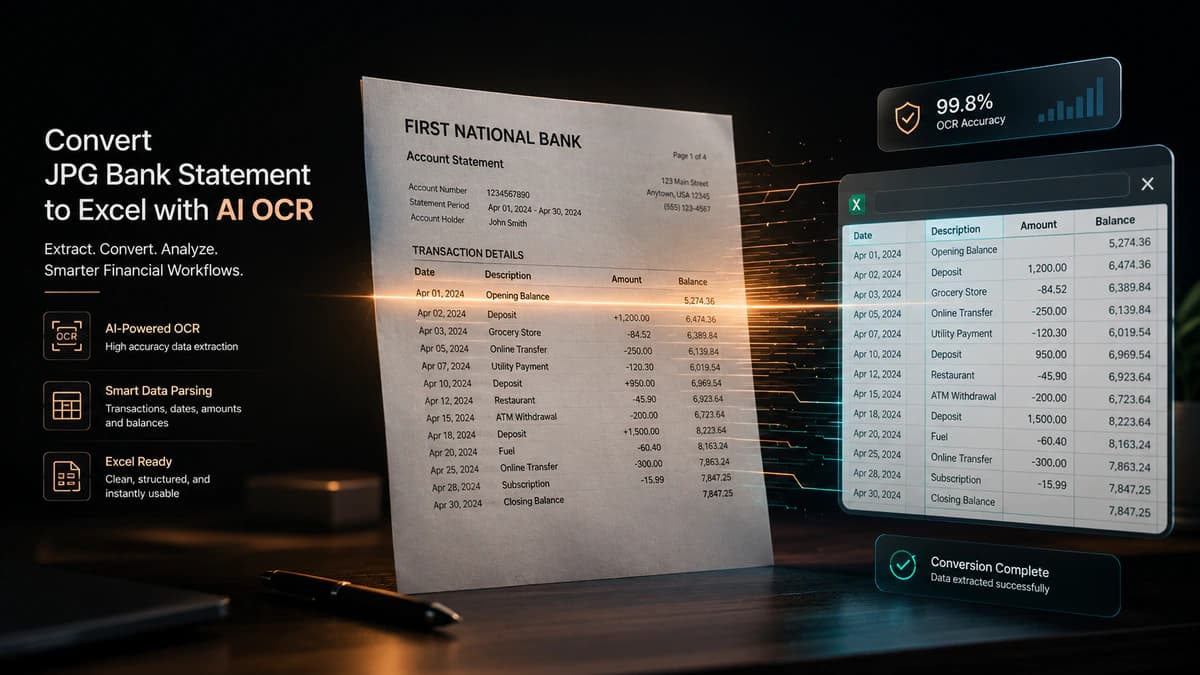
Understanding Image (JPG) to Excel Conversion
An image to Excel converter is a tool that has been designed to extract data stored inside image files like JPG, JPEG, or PNG, etc., and convert this into editable spreadsheet formats like Excel (XLSX) or CSV. Practically, there is much ease in taking a screenshot of the bank statement or inputting the scanned bank statement and converting it into a clean Excel sheet without the need for manually typing each and every transaction.
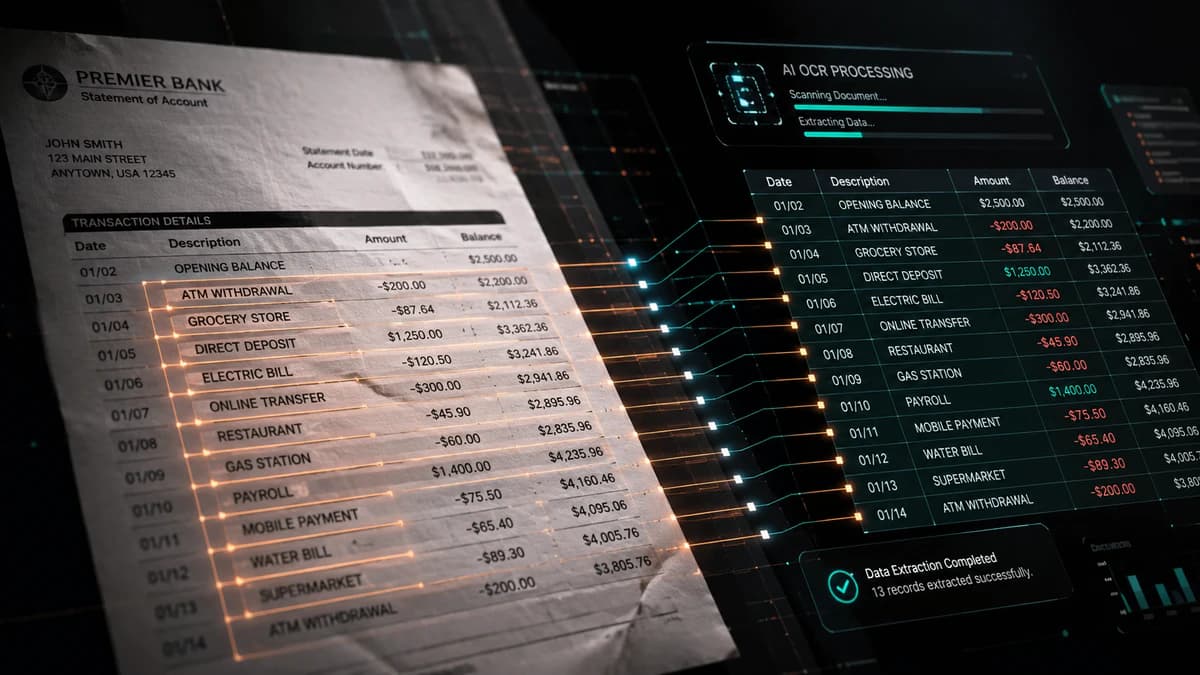
As the data is locked inside visual elements like tables, rows, and columns in bank statement images, these can not be directly edited or analyzed. A converter makes it possible to extract tabular data and convert it into usable spreadsheet data. This eliminates chances for errors in manual data entry, and the image bank statement is converted into useful columns like date, description, debit/credit amount, and running balance.
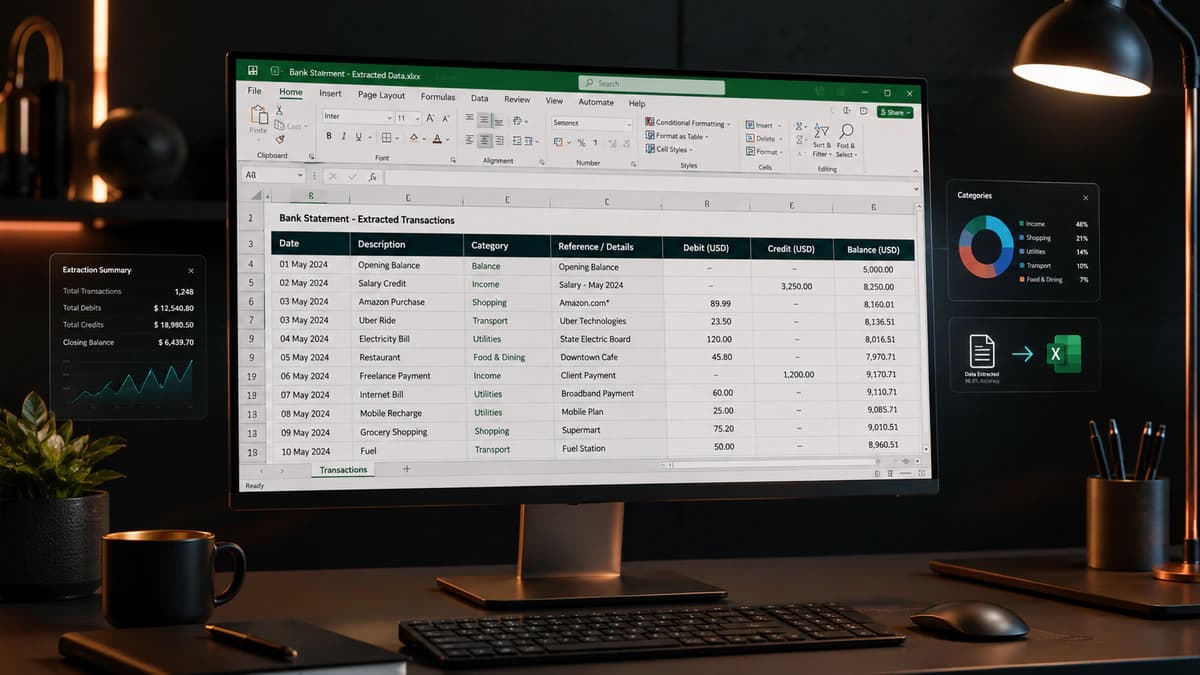
How OCR Technology Converts Images into Structured Data
An image to Excel converter online free tool uses OCR (Optical Character Recognition) technology in its core. OCR do the heavy lifting in this converter by reading the text and transforming it into machine-readable data, mirroring the OCR spine inside a modern bank statement converter. All of this process workflow is done using the following steps
- An image or scanned bank statement is input to the system.
- The tool does the pre-processing by improving image quality through the tweaking of contrast, alignment, and noise reduction.
- Text is detected, that is, characters, numbers, and symbols are identified.
- Tools recognise the table structure by identifying rows, columns, and layout structure.
- Extracted data is converted to spreadsheet format
- Final output is made available to the user in formats like Excel, CSV, or JSON.

As the technology is advancing, modern tools have introduced another layer of machine learning and AI-powered extraction after the OCR layer, before finalizing the output to improve accuracy. This layer makes all this data extraction intelligent by incorporating the following additional functionality. New techniques of layout detection algorithms and table recognition models have been developed to ensure that financial data is not only extracted but also logically organised.
This layer detects transaction patterns like dates, amounts, balances, and then automatically categorises entries into payments, deposits, transfers, fees, expenses, and profits. This enables tools to handle multi-language statements and can work with low-quality images and scanned PDFs.
Why Convert Bank Statement Images to Excel?
JPG bank statements = unstructured, non-editable, error-prone for manual entry
Key problems = lack of automation, formatting inconsistency, integration issues
Conversion benefits:
Automation (bulk processing, fast extraction)
Accuracy (OCR + AI reduces errors)
Analysis (sorting, filtering, pivot tables)
Real-world use cases:
Accounting & bookkeeping
Tax filing & reporting
Expense tracking & budgeting
Core value = converting image data → structured Excel enables financial insights and workflow efficiency
Challenges with JPG Bank Statements
Bank statement data stored in JPG or PNG images is visible to the human eye, but it's highly inefficient from an analytical perspective, as the data is unstructured, as each transaction's constituent elements, like date, description, debit, credit, and balance, are locked inside pixels rather than usable data.
This creates several practical problems, like transactions may not be editable, manual data entry has to be done from bank statements into Excel if the user wants to do any work on data, images cannot be integrated with accounting tools like QuickBooks or Xero, different banks use different formats, so data is inconsistent, and further low-quality issues are a headache fr the users.
Benefits of Converting to Excel (Automation, Accuracy, Analysis)
When using an image to Excel converter, free or a more advanced tool, the user transforms static data to structured, editable content, which has the following advantages:
- Automation is the biggest gain, instead of entering hundreds of rows manually, these OCR-based tools process, extract, and organise transactions in seconds.
- Modern converters use OCR combined with machine learning to detect transaction data like numbers and dates. Many tools have added features like balance checks or reconciliation alerts.
- Data analysis is the core benefit of this converter; it enables users to sort transactions by date or amount, create pivot tables for spending categories, track monthly trends, or identify unusual expenses.
Real-World Use Cases (Accounting, Tax Filing, Expense Tracking)
In the real world, tools like these are very helpful for individuals and in various industries.
In accounting and bookkeeping, professionals have to deal with multiple banks of multiple clients. Using these tools enables them to bulk convert these images based statments into Excel and then these be seamlessly imported into accounting systems.
In the tax filing process, structured data helps to quickly calculate totals, identify deductible expenses, and generate reports. This improves and speeds up returns preparation and reduces compliance risks.
Individuals and business owners would become proficient in expense tracking, as they can now easily categorize expenses (food, rent, utilities), monitor budget performance, analyze cash flows, and detect unusual or fraudulent transactions etc.
How to Convert Image (JPG) Bank Statement to Excel (Step-by-Step)
Conversion workflow = Upload → OCR processing → Review → Export
Step 1: Upload JPG/PNG image (quality impacts accuracy)
Step 2: OCR + AI extract text, tables, and financial data
Step 3: Review transactions (validation, categorization, reconciliation)
Step 4: Export to Excel (XLSX), CSV, or JSON
Key outcome = unstructured image → structured spreadsheet for analysis and automation
These converters transform image-based bank statements using the following process.
Step 1: Upload Your Image File (JPG, JPEG or PNG)
The process begins by simply dragging and dropping the file into the converter, clicking upload, and selecting from your device or taking a photo of a bank statement from your mobile. Some platforms support bulk uploads too.
Step 2: OCR Processing & Data Extraction
Once the file is uploaded, OCR (Optical Character Recognition), along with AI-powered table detection, is applied to extract text (dates, descriptions, amounts), and table structure (rows and columns) is identified.
Here, advanced converters do extra miles and detect financial patterns (credits, debits, balances). Handle multi-language bank statements successfully.
Step 3: Review Extracted Transactions
After raw data has been extracted and organised into final output using machine learning anf AI powered algorithms, than its better to review the final output manually. This is done by reviewing on a sample basis the converted dates, amounts, and transaction descriptions, column alignment (Debit, Credit, Balance), ensuring that no rows are missing or duplicated.
Step 4: Download Excel / CSV Output
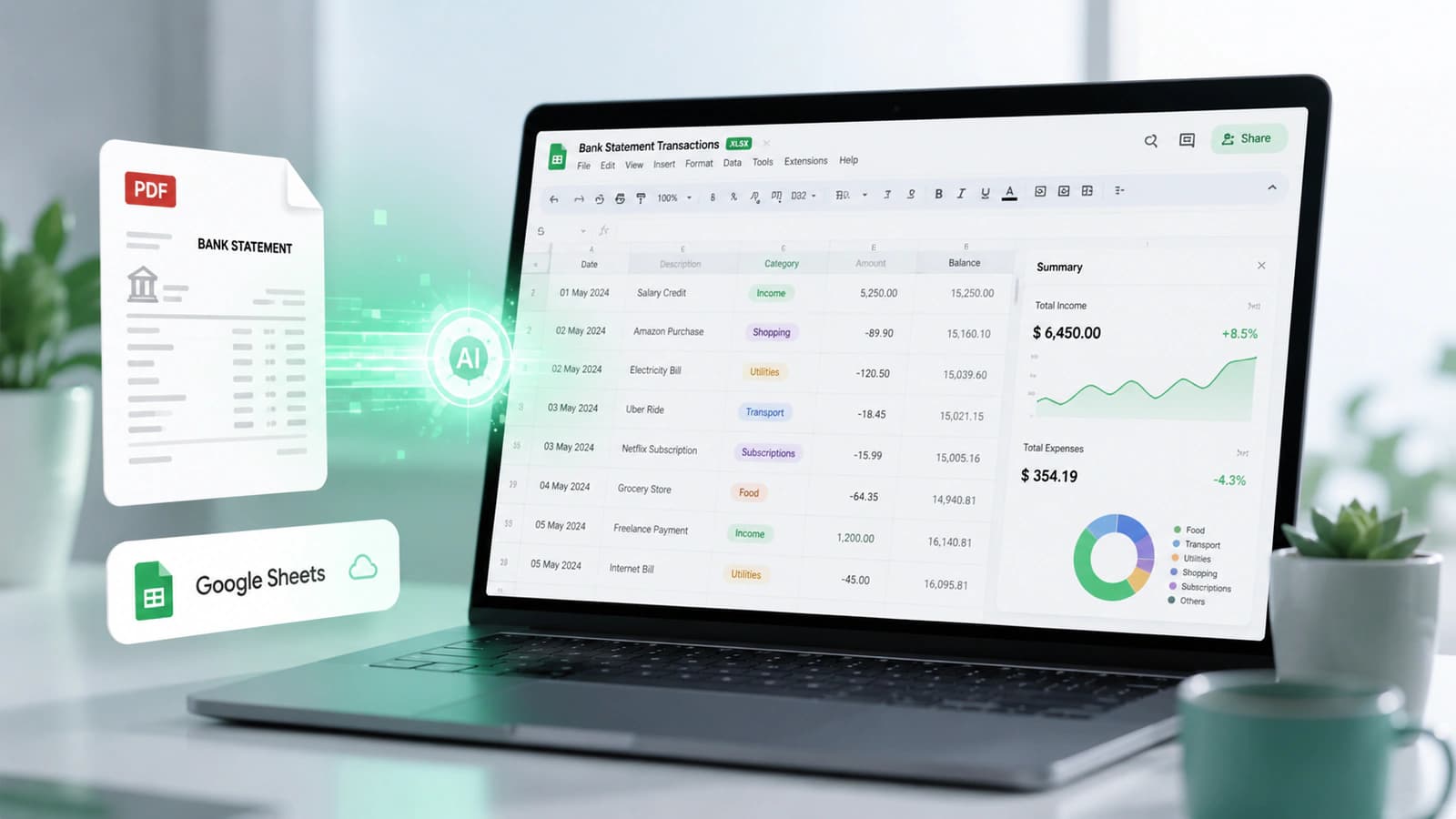
Once all done, you can export the data into your preferred format like Excel (XLSX), CSV, and JSON. The downloaded data may be opened in Excel, Google Sheets, or some other preferred software of your choice.
Image to Excel Converter Free vs Paid – What's the Difference?
Free vs Paid difference centers on:
Accuracy (70–80% vs 98–99%)
Limits (file size, pages, usage caps)
Features (basic OCR vs AI-powered extraction)
Free tools:
Limited conversions, lower accuracy on complex images
Weak table structure preservation
Paid tools:
High accuracy, bulk processing, automation
Strong table detection and financial data structuring
Security (encryption, GDPR compliance)
Upgrade trigger:
High volume, financial use cases, need for automation
Core insight = free tools are for convenience; paid tools are for reliability and scale
Differentiation between free vs paid image-to-Excel converters can be done on the basis of accuracy, scalability, and data reliability. According to me, the biggest misconception is that all converters perform similarly. But actually free and paid tools gap become obvious when you deal with complex layouts, scanned images, or bulk data extraction.
Limitations of Free Tools (File Size, Accuracy, Pages)
Free tools can be a great starting point are a great starting point for individual users. But free tools obviously have some restrictions like file size e.g upto 10MB file size, and usage limits like only a few conversions per day.
Free tools not only have size and usage constraints, but accuracy is another major concern for such tools, as clean, high-quality images need to be converted efficiently, but performance can drop up to 70–80% on messy documents, which have low-resolution or scanned documents, skewed or shadowed images, and complex tables with multiple columns. Further, free tools lack bulk conversion, advanced validation, reconciliation, and customer support
Benefits of Paid Tools (Bulk Processing, AI Accuracy, Automation)
Paid tools go the extra mile to fulfill the needs of professionals who need reliable, scalable, and accurate data extraction. Accuracy can reach up to 98–99% even on complex or low-quality documents. These tools have been tailored for diverse datasets like bank statements with different layouts, multi-page PDFs / scanned images, and handwritten or noisy data. Professionals need bulk processing for their diverse range of clients and their varying needs. Paid solutions allow users to convert hundreds or thousands of images at once, process multi-page documents automatically, and integrate workflows using APIs
Paid tools use machine learning and AI algorithms for table and layout preservation. Modern paid tools reconstruct rows and columns accurately, identify financial fields (date, description, debit, credit, balance), and parse multi-table documents into separate sheets.
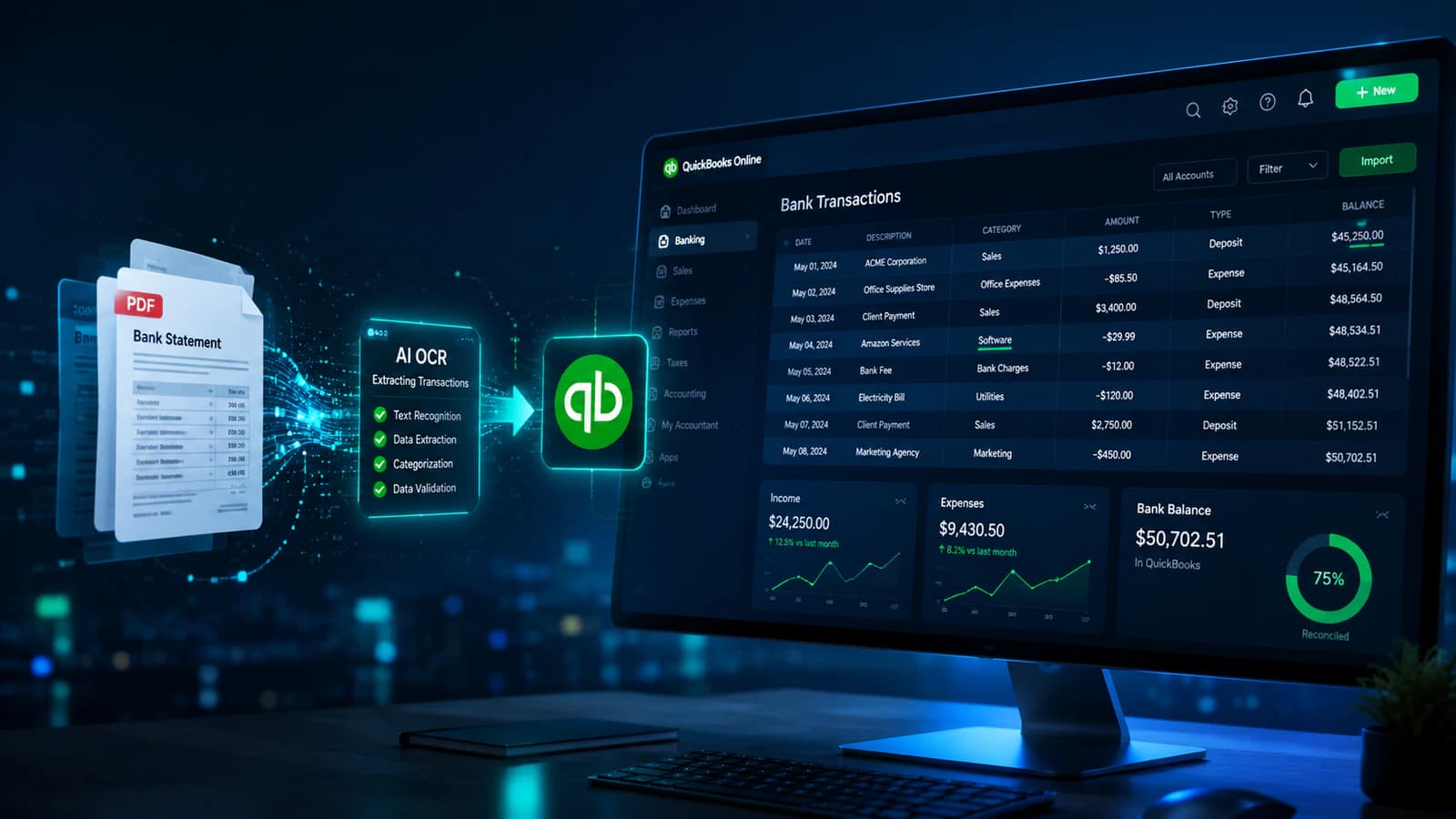
Paid tools include automation features like automatic categorization of transactions, data validation, reconciliation checks, and integration with accounting platforms like QuickBooks and Xero.
Paid tools excel in security too and employ strong encryption (AES-256, RSA, SHA-256) for the preservation and safeguarding of their clients' financial assets. Further, these tools are GDPR compliant and promptly delete client-sensitive financial data files from their servers and don't share them with third parties either.
When Should You Upgrade?
I think I have analyzed the subject in detail, and the user is now able to decide according to their use case when to upgrade from free to paid image to Excel converter based on the above-discussed factors.
Supported File Formats & Output Options
Input formats:
JPG, PNG, scanned PDFs (unstructured data requiring OCR)
Output formats:
Excel (analysis), CSV (system import), JSON (automation)
Compatibility:
Google Sheets, QuickBooks, Xero
Key insight:
Format flexibility enables seamless data flow from raw documents to financial systems
A reliable converter supports a diverse range of file formats so as to enable users to harness its full potential.
Input Formats (JPG, JPEG, PNG, Scanned PDFs)
These converters are designed to handle both image-based and document-based inputs. The most common formats are JPG / JPEG ( often used for scanned bank statements and screenshots), PNG (for high-quality images), and scanned PDFs ( image-based documents).
Output Formats (Excel XLSX, CSV, JSON)
Once data is extracted and organised, it may be exported into various formats according to the requirements of the users, like Excel (.xlsx, popular format for financial analysis), CSV (Comma-Separated Values, ideal for system imports), and JSON (used in API integrations and automated workflows).
Compatibility with Tools (Google Sheets, QuickBooks, Xero)
A good converter should not work in isolation; instead, it should seamlessly integrate with other platforms like Google Sheets (used for cloud-based sharing), QuickBooks ( for accounting and bookkeeping), and Xero (for financial management and reconciliation).
Security & Privacy When Using Online Converters
Security components:
AES-256, RSA, SHA-256 encryption
Privacy practices:
Automatic file deletion
No data storage / anonymous usage
Compliance:
GDPR and global data protection standards
Key insight:
Secure converters protect sensitive financial data during upload → processing → export stages
Using such converters is not free from security risks. Clients' bank statements contain personal and transactional information that must be safeguarded with strict protection safeguards. In the industry, the following measures are adopted to achieve this objective.
Encryption Standards (AES-256, RSA, SHA-256)
The following standards are being used for achieving this objective, like AES-256 encryption (used for securing stored data), 2048-bit RSA encryption (ensures secure data transmission), and SHA-256 hashing (protects data integrity). These models ensure files cannot be intercepted during transfer, data remains secure even during processing, and unauthorized access is prevented. For example, many tools advertise 256-bit encryption as a standard, which is widely considered military-grade security.
File Deletion Policies
Another measure tools take to safeguard financial assets is that files are instantly deleted after conversion, uploaded files are not permananety stores on servers. Many tools offer anonymous conversion, meaning that you don't need to create an account to convert files.
GDPR Compliance & Data Protection
Tools ensure that all the conversion process is GDPR (General Data Protection Regulation) compliant, meaning that user data is not shared with anyone, users have control iver the ir data, and strict policies are adopted during storage and processing.
Common Problems & How to Fix Them
Common issues:
OCR inaccuracies (misread characters)
Formatting errors (misaligned tables)
Low-quality images (blur, noise)
Multi-page handling problems
Fix strategies:
Use high-resolution, clean images
Choose tools with AI OCR + table detection
Validate extracted data manually
Use bulk/multi-page capable tools
Key insight:
Input quality + tool capability + validation = accurate output
This conversion process is not an easy road, and like other avenues, this process has its own challenges as well. I am highlighting some as follows:
Inaccurate OCR Results
Often, OCR has a challenge of incorrect text recognition. OCR may incorrectly interpret characters such as "0" as "O", "1" as "I" or decimal points may be misplaced in financial values, causing errors in totals and reconciliation.
Some measures may be adopted to avoid such errors, like use high-quality images with clear text. Further tools with AI-powered OCR and table detection can avoid such occurrences.
Formatting Issues in Excel
As the basic OCR only extracts plain text, there are chances that the converted data for Excel has a broken table structure. As a result of this incident, columns of converted bank statements shift incorrectly, different rows merge or split, and debit and credit values appear in the wrong fields.
This issue can be fixed by using converters with strong table detection algorithms and AI-powered data normalisation features so that inconsistencies discovered in OCR-read data may be eliminated.
Low-Quality or Scanned Images
One of the common issues faced in image-to-Excel conversion is low-resolution images or poorly scanned documents. These issues cause conversion errors. Types of issues that are common in images are blurry text, skewed alignment, background noise, or shadows.
OCR engines have trouble with these inputs and struggle. How we can fix such issues may include the following: use images with at least 300 DPI resolution, ensure proper lighting when capturing images, align documents straight before uploading, and use image pre-processing tools (crop, enhance contrast). High-quality input significantly improves OCR performance and reduces errors.
Multi-page Bank Statements
Another challenge these tools face is multi-page documents. Although the number of pages is not a direct issue, these tools have been designed to cope with these documents, but potential issues that may arise could be missing pages during upload, incorrect merging of transactions, and loss of continuity in balances.
The remedy available here or the potential fixes can be used with tools that support bulk or multi-page processing, upload complete PDFs instead of separate images (if possible), verify that all pages are included before conversion, and further check opening and closing balances for continuity.
Image to Excel Converter Use Cases Across Industries
⚡ QUICK SUMMARY
Industries using image to Excel converters:
Banking & finance (reconciliation, reporting)
Accounting (QuickBooks, Xero integration)
Business automation (APIs, bulk processing)
Personal finance (budgeting, expense tracking)
Core value:
Automation + accuracy + data analysis
Key insight:
Converts unstructured financial data into actionable insights across multiple domains
This tool has gained traction these days in the rapidly evolving field of financial workflow. Due to its ability to convert static data to structured information, it is becoming part of everyday workflows. According to me, the real value comes from harnessing its power in the industries.
Banking & Finance
In the banking sector its a daily practice of processing bank statements, credit card statements, and transaction records. Many of these documents are still in scanned PDFs or images.
Using an image-to-Excel converter, financial teams can extract transactions automatically, perform reconciliation between balances, detect anomalies or unusual transactions, and generate financial reports.
Accounting & Bookkeeping
Accountants and bookkeepers desperately need structured data. By converting image-based documents into Excel, they can seamlessly integrate data into accounting systems.
Major use cases in this domain include importing transactions into QuickBooks or Xero, organising data for the preparation of financial statements, and managing client records efficiently.
Business & Enterprise Automation
Businesses use a wide variety of invoices, receipts, and financial documents, including bank statements in image format. By converting these documents into structured data, especially bank statements with huge amounts of financial tabular data, users may integrate this with other systems to achieve various objectives. These may include automating document processing workflows, integrating data into CRM, ERP, or databases, and performing bulk conversion of thousands of files.
Personal Finance Management
An individual may also benefit from an image-to-Excel sheet converter, as many people receive bank statements or transaction summaries as images or PDFs. By converting them into Excel, users can track monthly expenses, categorize spending (food, rent, utilities), monitor savings & budgets, and identify unusual charges.
Frequently Asked Questions
Can I convert scanned images to Excel?
Yes, most modern tools support scanned images using OCR technology. Even low-quality scans can be processed, though accuracy improves with better image quality.
Is there a free image to Excel converter online?
Yes, many platforms offer an image-to-Excel converter online, free options. These are suitable for basic use but may have limitations like file size, daily usage caps, or reduced accuracy.
How accurate are OCR-based converters?
Accuracy typically ranges from 85% to 99%, depending on image quality and tool capability. Advanced AI-powered tools perform better with complex layouts and financial data.
Can I convert bank statement images directly to Excel?
Yes, specialized tools are designed specifically for this purpose. They extract transactions, detect table structures, and output clean Excel files ready for analysis or accounting.
Final Thoughts
The choice of this tool directly impacts your productivity, accuracy, and data security. So your best approach should be to evaluate tools based on your specific workflow and not on the basis of popularity.
Users' expectations vary drastically from these tools, like accountants and bookkeepers may need reconciliations or to integrate converted data with their accounting software, and financial analysts may need this data for their forecasting and financial analysis.
Hope you enjoyed this guide!
Conversation0 Comments
Write a comment ↓Leave a Reply
Your email address will not be published. Required fields are marked *
Login Required
Please sign in to join the conversation.