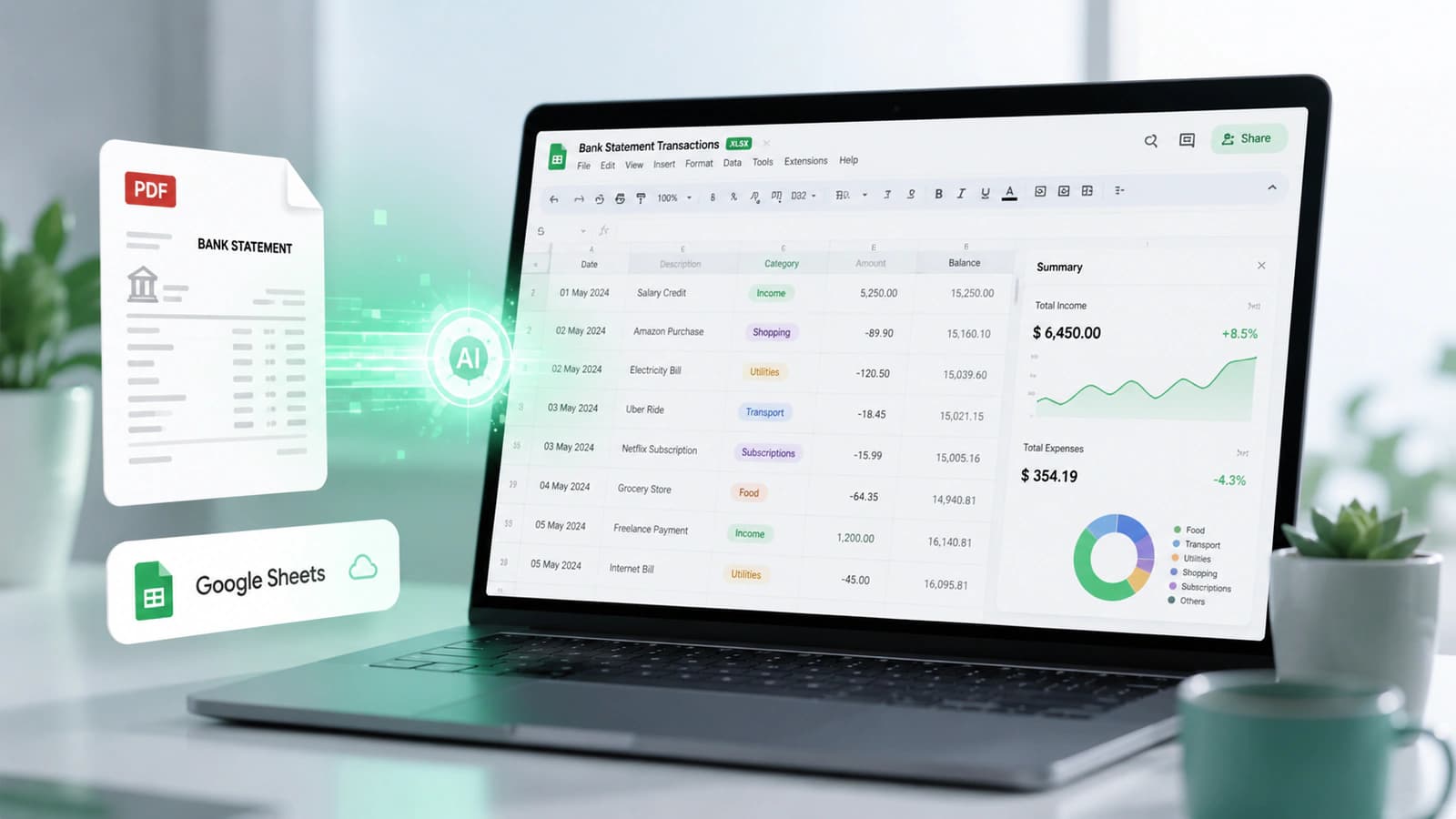
Introduction to Converting Bank Statements into Google Sheets
- Core concept: Converting bank statements into structured formats enables analysis and automation
- Key problem: PDFs are unstructured and difficult to process
- Key solution: Use conversion workflow (PDF → CSV → Excel → Google Sheets)
- Important entities: Google Sheets, CSV, Excel, OCR, AI extraction, QuickBooks, Xero
- Insight: Structured data transforms financial records into actionable insights
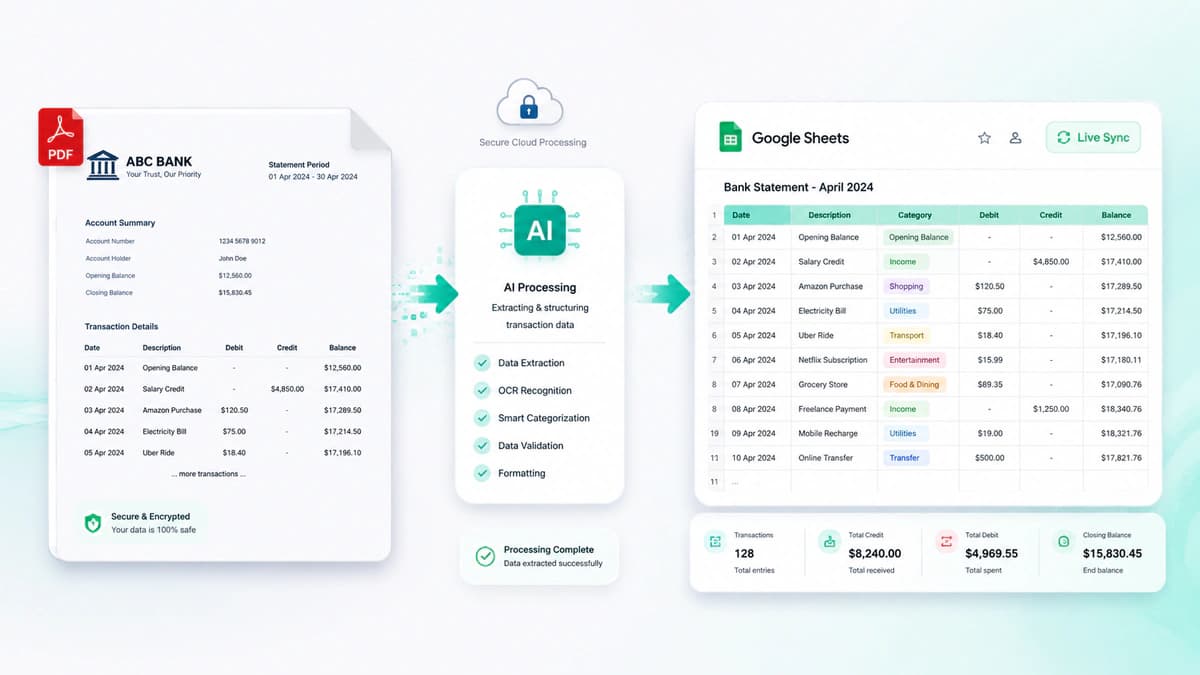
Structure is the key basis attribute that distinguishes useful information from the raw data. Bank statements always have valuable information for managing personal finance, bookkeeping, or business accounting, but the format these bank statements come in limits their usability.
Why Structured Financial Data Matters
According to me, transforming view-only documents to analyzable datasets enables a user to effectively use the formatted data for expense tracking and categorization, cash flow analysis, financial reporting & forecasting, and accounting reconciliation with tools like QuickBooks or Xero.
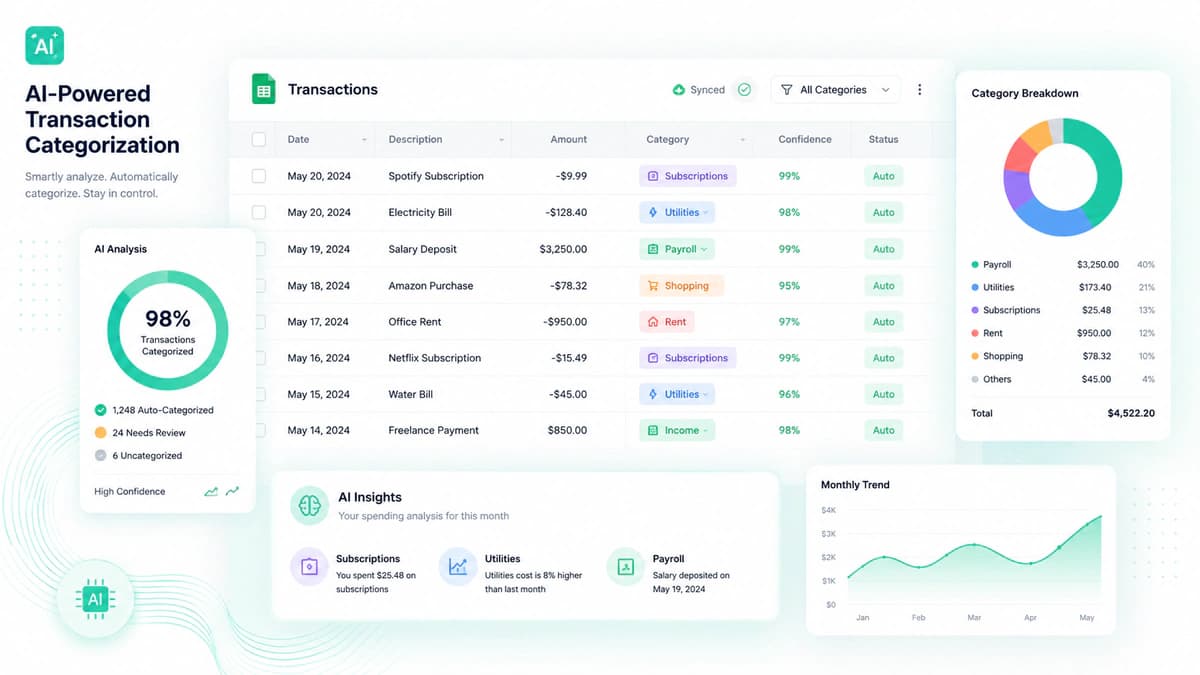
Structured financial data gives you the liberty to sort, filter, and apply formulas to the financial figures, which is nearly impossible with viewing only raw PDFs.
Why PDFs Are Hard to Work With
Most of the banks give bank statements in a format that is prepared for readability and not for data processing. In banks, PDF files' data is locked and cannot be easily edited; tables are not machine-readable; copy-paste often breaks columns & rows; and manual entry leads to 2–4% error rates in financial workflows.
Role of Google Sheets in Financial Workflows
Why Google Sheets are becoming so popular these days is due to its flexibility and cloud-based nature. This enables users to collaborate across teams in real time, easily share and access from anywhere, seamlessly integrate with APIs & accounting software, and flawlessly import CSV and Excel files.
What Is Google Sheets and Why It's Ideal for Financial Data
- Google Sheets = cloud-based spreadsheet platform enabling real-time collaboration
- Key advantage over Excel: collaboration, automation, and accessibility
- Integrates with accounting tools like QuickBooks and Xero
- Supports workflows like CSV import, CSV to Excel, and converting CSV to Google Sheets
- Core use cases: budgeting, reconciliation, reporting, and cash flow analysis
- Insight: Google Sheets transforms converted bank data into actionable financial intelligence
Google Sheets is a cloud-based spreadsheet solution that allows users to create, edit, and manipulate data directly in a web browser. Unlike traditional desktop-based solutions like Microsoft Excel, it operates online, which is why widely used in modern workflows.
According to me, the real strength of Google Sheets is not in storing data but in its ability to easily share, access, and transform data.
Cloud-Based Flexibility for Financial Data
It spares users from worrying about file versions or device limitations. Once the bank statement is converted to CSV or Excel, then it may easily be uploaded to Google Sheets, which empowers users to access data from anywhere, collaborate with team members simultaneously, and maintain a single & always updated version of financial records.
Benefits Over Excel for Collaboration and Automation
Although Microsoft Excel is very powerful for offline analysis, Google Sheets has a clear edge in collaboration and workflow automation, such as multiple users can edit the same sheet in real time, it has built-in commenting & version history, and further, there is no need to send files back and forth.
When we talk about automation, Google Sheets can integrate with scripts and automation tools, scheduled data updates & imports, and seamlessly handle CSV imports and live data connections.
Integration with Accounting Tools
Google Sheets offers to integrate with widely used accounting platforms such as QuickBooks and Xero. This empowers users to import transaction data into accounting software, reconcile bank transactions with invoices, and sync financial records across tools.
Real-World Use Cases in Financial Workflows
Once the bank statement has been converted to CSV/Excel and uploaded to Google Sheets, it becomes more valuable. Now the user can categorize transactions, monitor spending patterns, and build monthly budgets using formulas and filters. Finance professionals match bank transactions that are now in Google Sheets with internal records to ensure accuracy in financial statements. Financial data can be transformed into charts and summaries for concerned stakeholders or for internal analysis. Businesses track inflows and outflows to understand liquidity in the business and to make better financial decisions.
Convert Bank Statements to Google Sheets step by step process
- Three main methods: CSV direct upload, PDF → CSV → Sheets (best), PDF → Excel → Sheets
- CSV is the easiest format to import into Google Sheets
- Excel is optional but useful for advanced formatting
- Key workflows: convert CSV to Google Sheets, csv to excel, convert CSV to Excel
- Insight: Choosing the right method depends on data format and the required level of processing
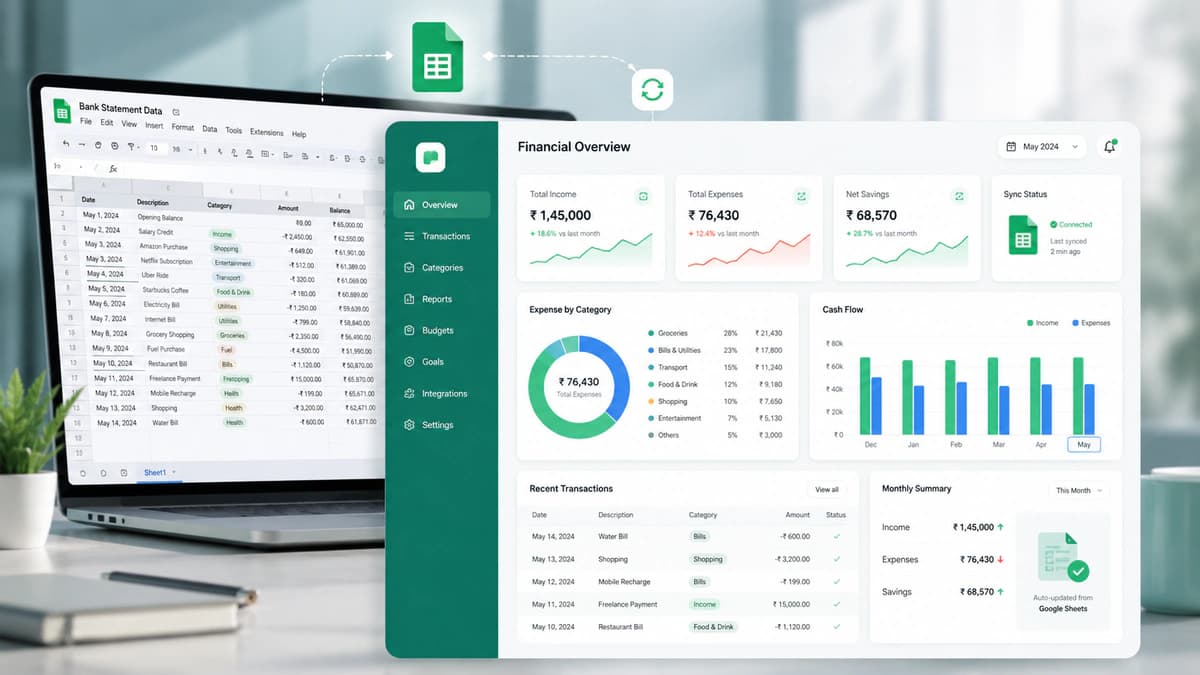
The choice of the method used for the conversion of a bank statement into Google Sheets depends on the format you start with and the tool you use. But I have listed these 3 methods, which accountants, finance teams, and individuals most commonly use.
Method 1 – Direct Upload (CSV to Google Sheets)
If your bank already provides data in CSV format, this is the simplest and fastest method.
How it works:
- Open Google Sheets
- Click on File → Import or upload a file directly
- Select your CSV file
- Choose how you want the data inserted (new sheet or replace existing data)
Since CSV is already structured, Google Sheets automatically maps the data into rows and columns.
Formatting and Cleanup
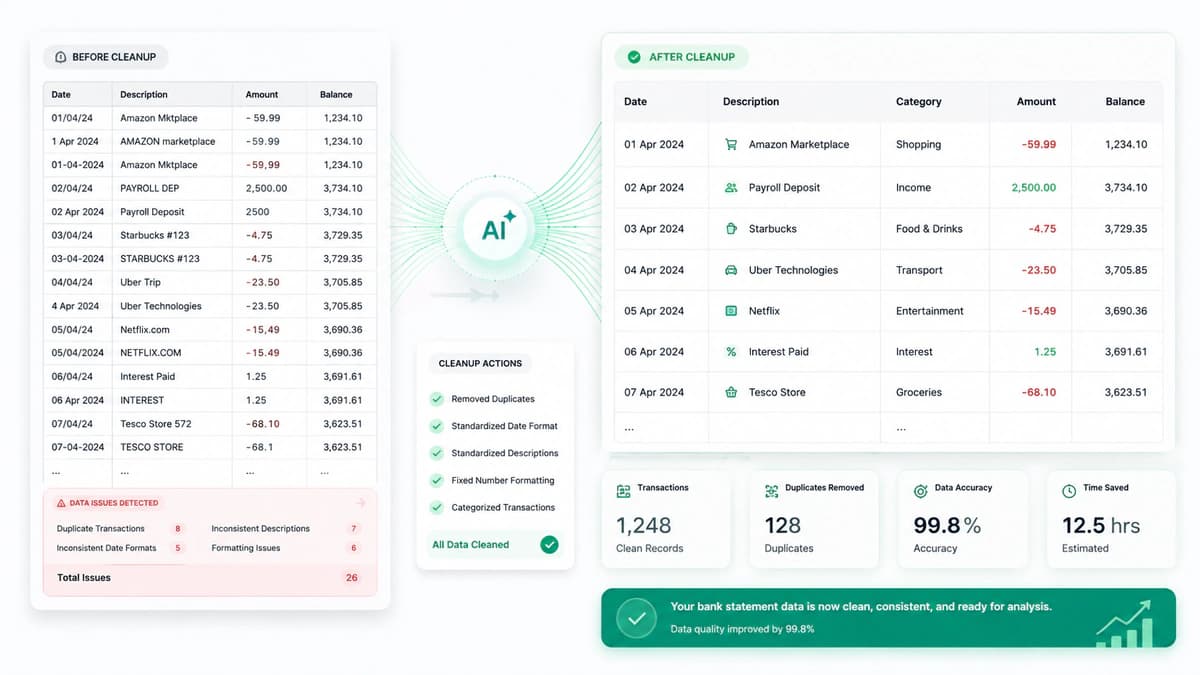
Although CSV files are structured, some cleanup may be required, like fixing date format (e.g., DD/MM vs MM/DD), ensuring amounts are recognized as numbers (not text), adjusting column headers (Date, Description, Amount, Balance), and removing empty rows or duplicate entries (if any).
Method 2 – PDF → CSV → Google Sheets (Recommended Workflow)
This is the most widely used and reliable method, especially when dealing with raw bank statements in PDF format.
Step 1: Use a Bank Statement Converter
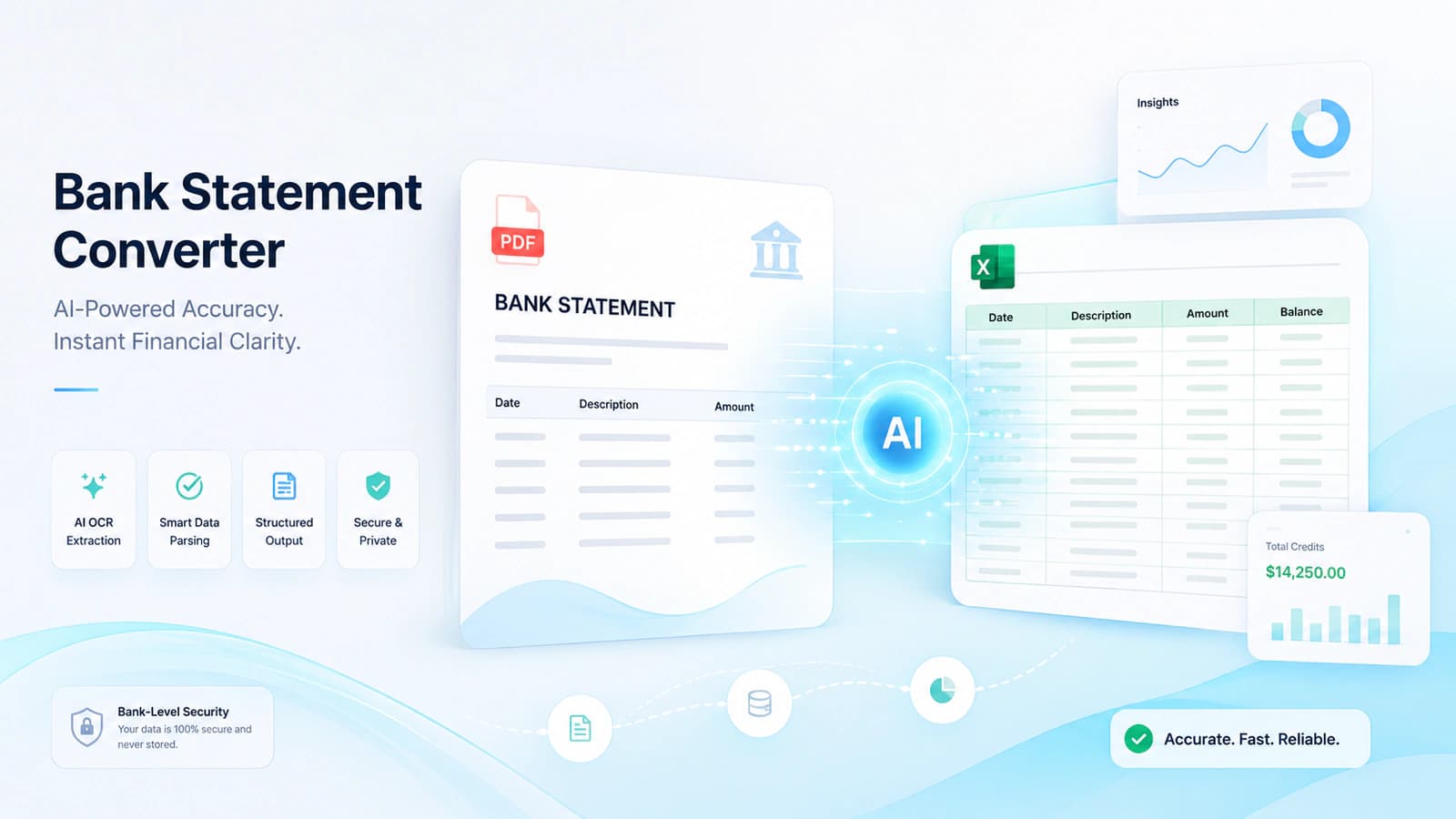
Upload your PDF to tools like aibankstatementconvert.com. These tools use OCR and AI-powered machine learning to extract transaction data such as dates, descriptions, and amounts with accuracy upto 99%.
Step 2: Export to CSV
Once the PDF file has been converted to CSV format, this gives us some added benefits like the file now has a clean tabular structure, it has a lightweight file size as its text is only now, and being standard text only, it is compatible across tools.
Step 3: Import into Google Sheets
Now, upload the CSV into Google Sheets as I talked in the above method 1 process is the same, and then proceed with formatting or analysis like above too.
Method 3 – PDF → Excel → Google Sheets
This method is employed when, before uploading a file to Google Sheets, some additional formatting or validation is required. This goal is achieved using the following steps.
Step 1: Convert PDF to Excel
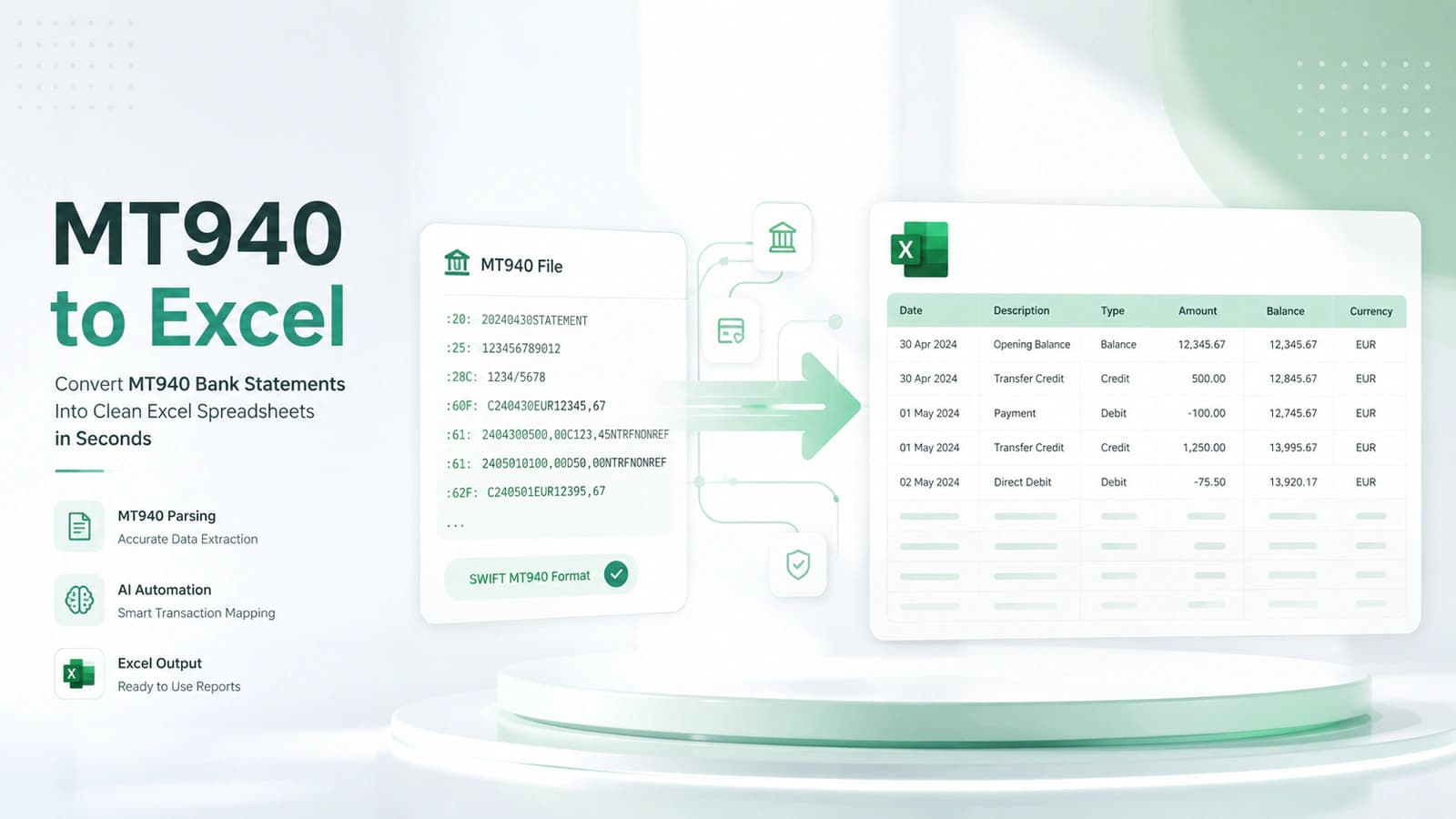
Use online converter tools like we specified above in step 2 and get the PDF file converted to Excel format (.xlsx / .xls). Converters may use OCR or AI-powered machine learning algorithms to convert PDF to Excel format, depending on the PDF file format.
Step 2: Review and Format in Excel
After successful conversion, the Excel file is reviewed for any inconsistencies in the conversion process. Further, Excel provides advanced features for data cleanup, pivot tables, and formatting & validation. These features are used to amend data before uploading to Google Sheets.
Step 3: Import Excel into Google Sheets
Now the finalised XLS/XLSX file is uploaded to Google Sheets, where it will automatically be converted into a sheet format.
How Bank Statement Converters Work (Behind the Scenes)
- Bank statement converters use OCR, machine learning, and data mapping
- OCR extracts text from PDFs (especially scanned files)
- Machine learning identifies patterns and structures across formats
- Data mapping organizes extracted data into tables (CSV/Excel)
- Accuracy (~99%+) is achieved through validation and consistency checks
- Insight: Understanding the process helps improve trust and troubleshooting
Although it looks simple, a PDF file is uploaded to one of these converters, and the file is instantly converted to editable structured data. But besides the simple-looking process, there are some techniques and methodologies running behind the scenes. According to me, understanding the working of these tools enables you to choose better solutions and troubleshoot issues when results are not perfect.
OCR (Optical Character Recognition)
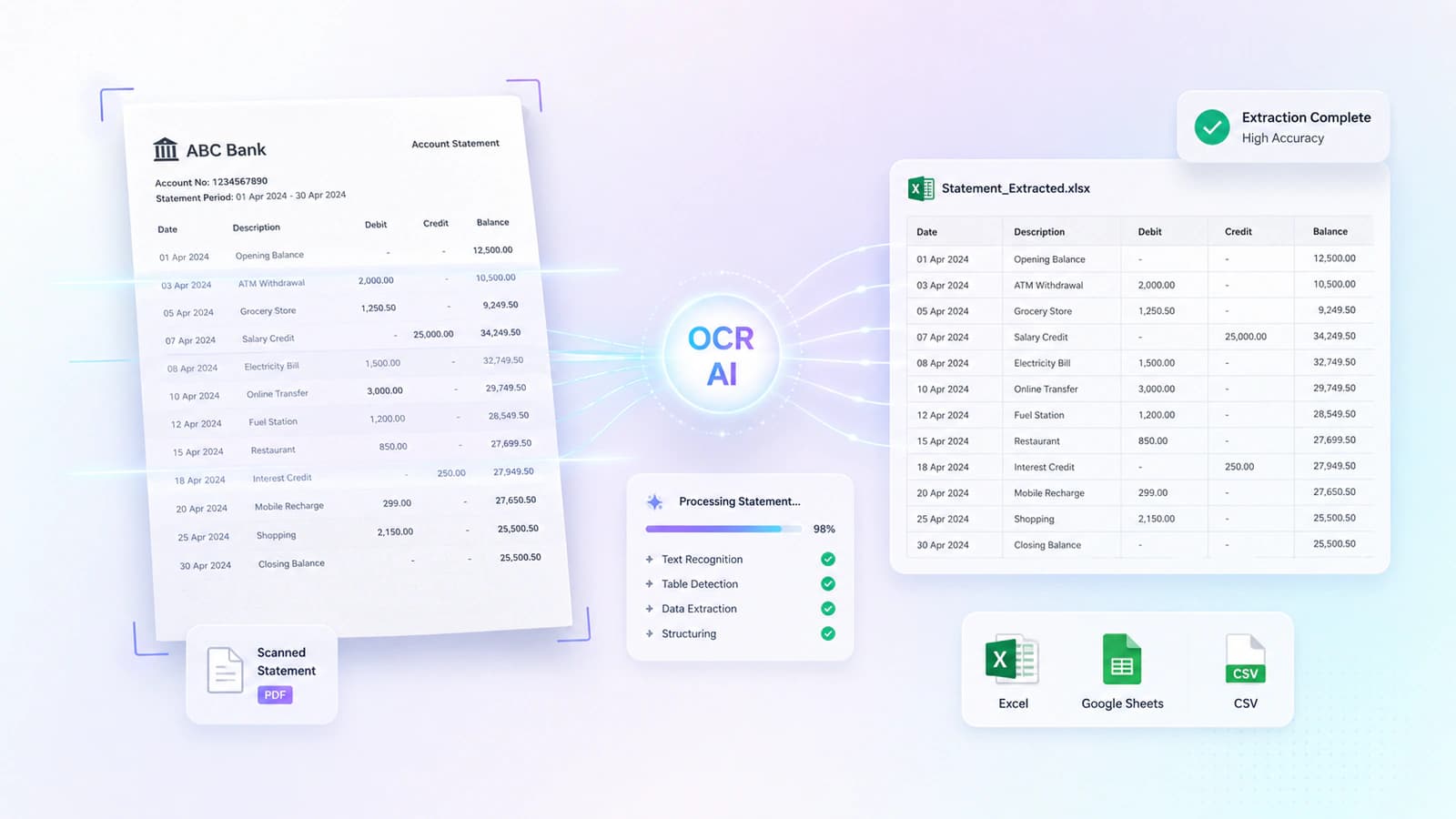
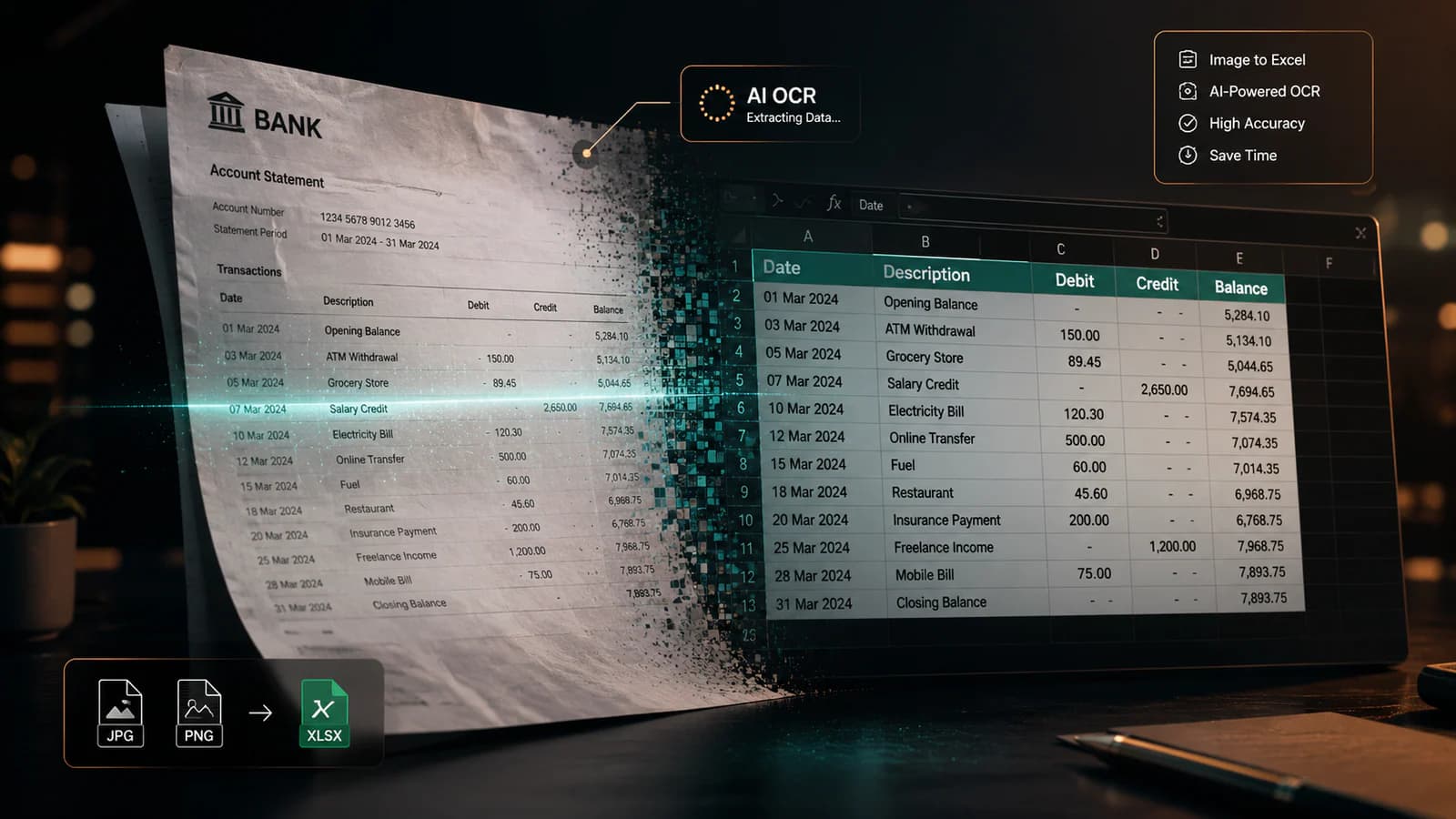
Initially, in this conversion, OCR (Optical Character Recognition) is applied. OCR scans the scanned or image-based PDFs and converts visual text into machine-readable characters, matching the extraction core of a trusted bank statement converter. OCR is needed, as many bank statements are not digitally structured. Scanned / image-based PDFs contain no actual text data, and tables must be interpreted visually.
Machine Learning Extraction
Once the characters have been extracted using OCR, this data is meaningless unless interpreted wisely. This transformation is conducted in modern converters by employing machine learning-based algorithmic extraction. Traditional tools rely on redefined fixed templates, which miss lots of diversification, but modern converters like aibankstatementconvert.com work differently. The tools like this analyze patterns in the document to identify transaction boundaries, column relationships, and repeating structures across pages.
This allows these tools to handle multiple bank formats without having a preconfigured setup for each one. According to me, this is what makes modern tools scalable.
Data Mapping into Structured Tables
As the data extraction process is completed, this data is transformed into CSV, Excel, or JSON format. This process involves assigning fields to values like (Date → Column A, Amount → Column B, etc.) so that the data is vertically separated into various columns. Rows are aligned across pages, and transactions whose descriptions span multiple rows are classified as single descriptions and grouped accordingly. Overall formatting of the extracted tabular data is preserved to ensure consistent formatting.
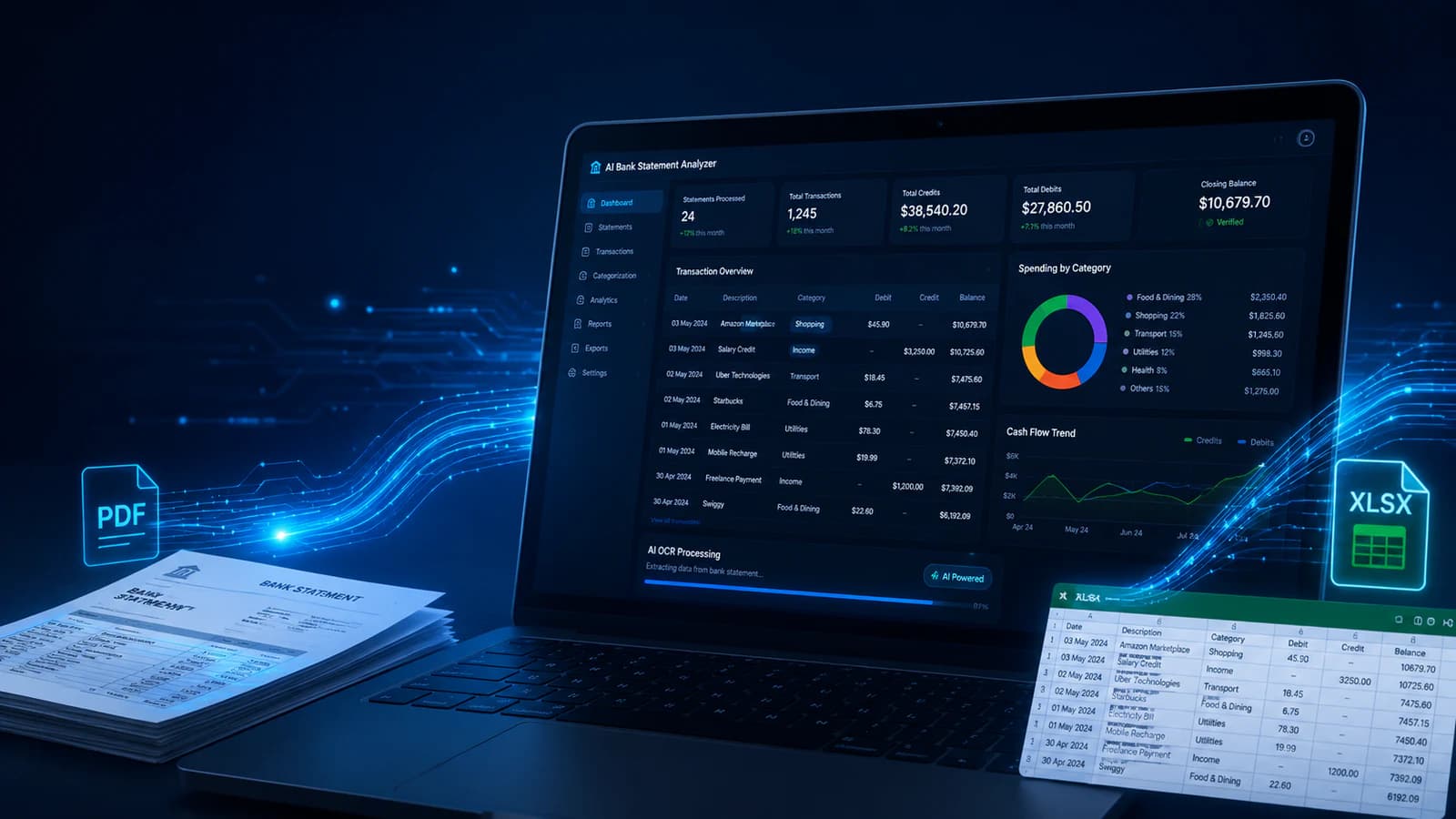
Now the output is a clean table that can be downloaded into any desirable format and subsequently imported into Google Sheets. Now, the data in the sheet can be filtered, sorted, and reconciled.
Real-World Use Cases of Google Sheets for Bank Data
- Google Sheets enables reconciliation, expense tracking, cash flow analysis, tax prep, and fraud detection
- Integrates with QuickBooks and Xero for accounting workflows
- Structured data allows automation, filtering, and insights
- Insight: Conversion unlocks real financial intelligence, not just data storage
As the bank statement has been imported into Google Sheets, it is not only a list of transactions now. It has been transformed into a powerful analytical engine. According to me, now the user has unlocked the real value of the entire conversion process. Now this Google sheet may be used for:
Accounting Reconciliation
One of the clear use cases is the reconciliation of bank transactions with internal accounting records, or those records contained in accounting software like QuickBooks and Xero. Finance teams can match deposits & withdrawals with invoices, identify discrepancies quickly, and ensure financial statements are accurate.
Expense Tracking
Google Sheets is widely used for tracking expenses across personal and business accounts. With structured data, transactions can be categorized (food, rent, utilities, etc.), monthly spending trends can be analyzed, and budgets can be monitored in real time
Cash Flow Analysis
Cash flow position is very critical for both individuals and businesses. Using Google Sheets, you can track inflows (income, deposits) vs outflows (expenses), calculate net cash position, and forecast future liquidity of the business.
Tax Preparation
During tax season, it is a hard task to handle viewable bank statement data for returns preparation. Tax practitioners always need to have digital data for this purpose. Converted bank statements in Google Sheets allow you to organize deductible expenses and apportion income for tax returns preparation.
Fraud Detection
Structured data also makes it easier to detect anomalies. Users can identify duplicate transactions, flag unusual spending patterns, and track unexpected charges, etc. The user may apply conditional formatting or filters in Google Sheets to highlight suspicious transactions automatically
Common Problems and How to Fix Them
- Common issues: broken columns, missing data, OCR errors, formatting problems
- Most problems stem from delimiters, scan quality, or formatting mismatches
- Fixes include re-importing, using better tools, and manual validation
- Insight: Small formatting fixes can dramatically improve data accuracy
Even with the advanced tools, bank statement conversion is not free from errors, and I have observed that most issues arise during formatting or extraction. The common issues observed are following:
Broken Columns After CSV Import
Sometimes it appears that all data appears in a single column, or columns may be misaligned. It may be that the delimiter (comma vs semicolon) is incorrect, which is why this happened. So now correcting the delimiter may resolve this issue.
Reimporting the CSV file with the correct separator solves this issue. Another fix could be using the "Split text to columns" feature in Google Sheets.
Missing Transactions
It may happen that some transactions are not present in the final output. A possible cause is that OCR has missed rows, poor PDF quality, or complex table structures in the underlying bank statement PDF. Its fix could be these: use a modern converter having OCR coupled with AI-powered normalisation and machine learning assistance. Manually verify ket transactions.
OCR Errors
Sometimes OCR may read the values incorrectly, as 1000 is read as 100. Its reason may be low-quality scans or unusual fonts. Then, how to fix it? Use Use high resolution PDFs. Switch to more advanced OCR tools and always manually validate critical fields.
Formatting Issues
Formatting issues are other challenges that are also in our way. Sometimes dates, currency, or numbers appear incorrectly. Its cause may be bank statement has regional settings or improper data types. To fix this issue, standardize date formats (YYYY-MM-DD) and apply consistent currency formatting across all banks.
Frequently Asked Questions
How to convert a PDF bank statement to Google Sheets?
You can follow this workflow: PDF → CSV → upload into Google Sheets. Use tools like aibankstatementconvert.com to extract data first into CSV and then upload it into Google Sheets.
Can I convert CSV to Google Sheets?
Yes. This is the easiest method. Simply upload the CSV file into Google Sheets, and it will automatically structure the data into rows and columns.
What is the best CSV to Excel converter?
Tools like Microsoft Excel (built-in) are the best tools for this.
Is it safe to use online tools?
As your bank statement contains sensitive financial data, before putting your financial statements to any tool, see its compliance with security standards like encryption (AES-256), for compliance (SOC 2, HIPAA), and it should have clear data handling policies
Can scanned PDFs be converted?
Yes. Tools using OCR can extract data from scanned bank statements with high accuracy. Modern tools also accompany machine learning and AI processing to normalize the extracted data.
Final Thoughts
I have tried to cover the conversion of a bank statement to Google Sheets. Selecting the right approach for this conversion depends on your goals, data sensitivity, and workflow complexity. According to me, there is no one-size-fits-all solution.
If you need a quick conversion, then use some online tools I have already covered in the above guide. For high accuracy, use OCR tools accompanied with AI power and machine learning to en sure accouracy upto 99%. Further, for high data privacy, use some of the fine tools, and for full automation, use API based solution. For most users, convert PDF to CSV and then upload into Google Sheets. But if needs grow, use some other approach as I outlined above.
Hope you enjoyed this guide!

Conversation0 Comments
Write a comment ↓Leave a Reply
Your email address will not be published. Required fields are marked *
Login Required
Please sign in to join the conversation.