
What is a QBO Converter and Why It Matters
- QBO (Web Connect format) is a structured file designed for seamless QuickBooks import.
- A QBO converter transforms PDF, Excel, or scanned bank statements into QBO/CSV/OFX formats.
- QuickBooks requires structured data to automate accounting processes like reconciliation and categorization.
- PDFs are unstructured and require OCR or extraction tools to be usable.
- Primary use case: accountants and businesses converting bank statements to QuickBooks efficiently.
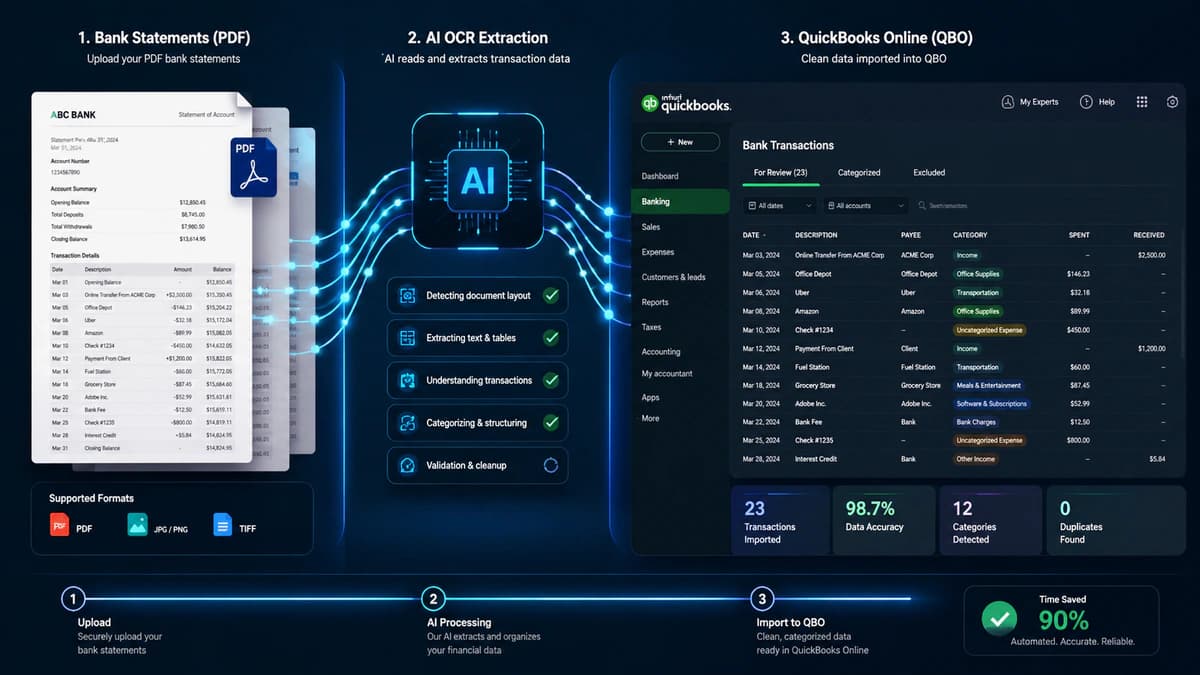
A bank statement contains useful information that is the reflection of accounting entries in QuickBooks. User needs that the financial record available in the bank statement should be easily available in QuickBooks for processing. This is where the QBO converter comes in and converts raw financial transactions present in the bank statement to the structured format that QuickBooks can understand.
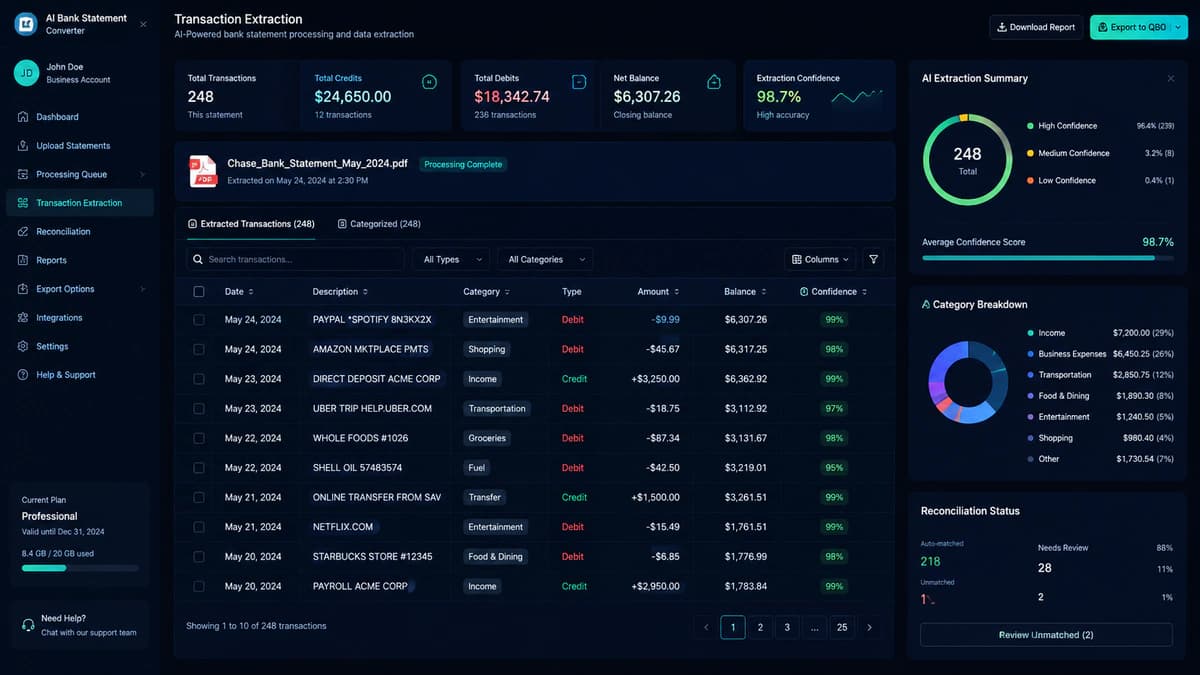
Understanding QBO (Web Connect Format)
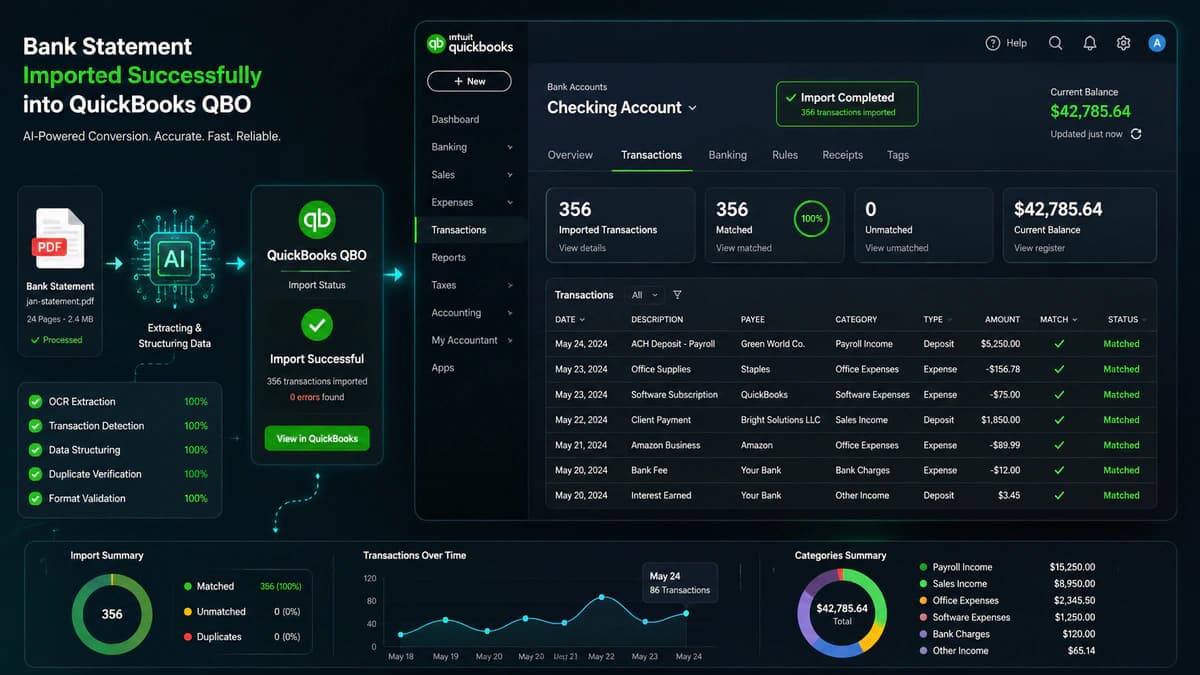
A QBO file (also known as the Web Connect format) has been designed for the import of financial data into QuickBooks Online. This file is based on structured financial data standards similar to OFX.
A QBO file includes account identifiers (like account number and INTU.BID), proper transaction structure (date, description, amount), and metadata that ensures correct account mapping.
Role of a QBO Converter
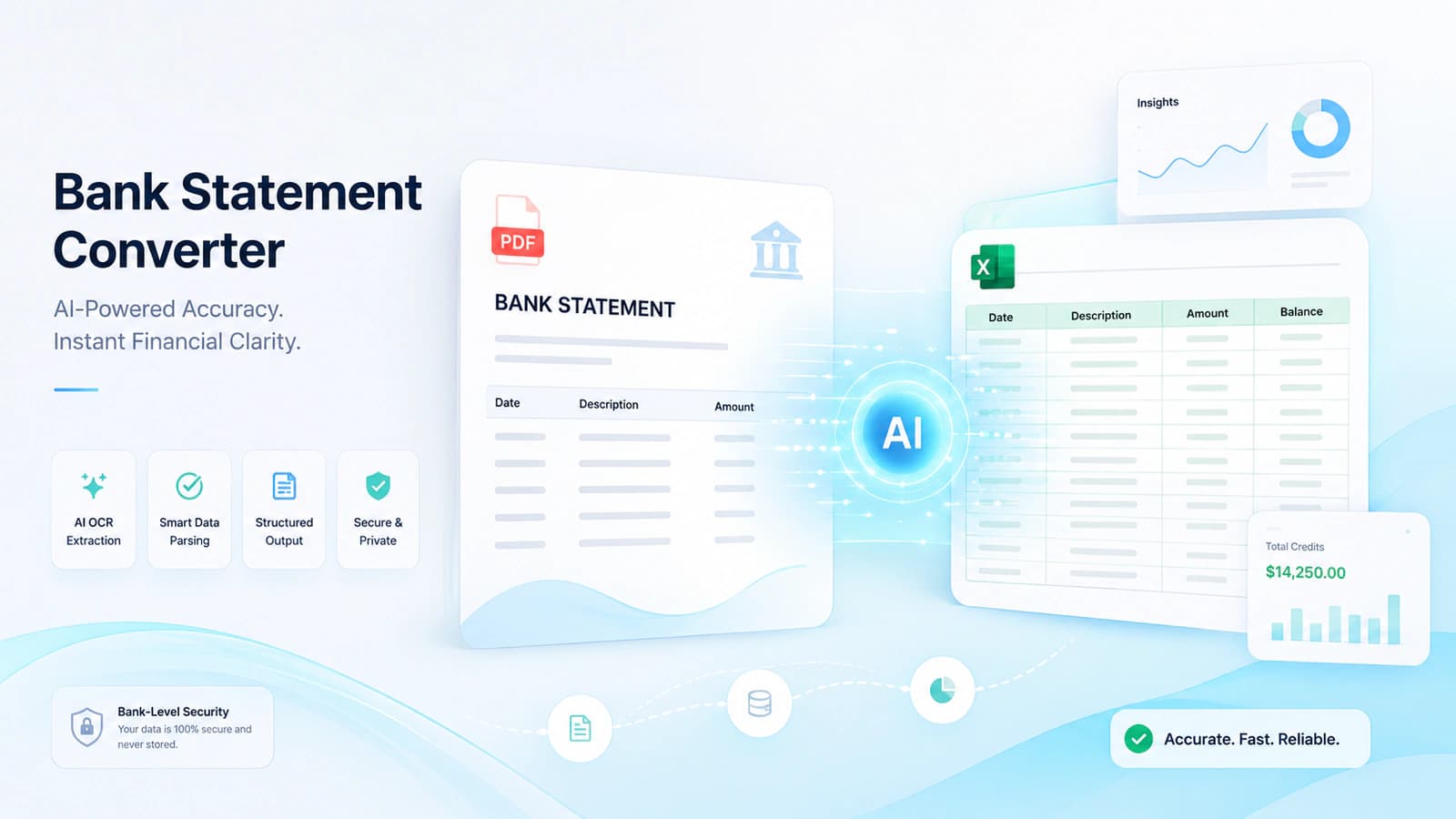
A QBO converter takes the unstructured or semi-structured data from the PDF, Excel sheet, or scanned document and transforms it into a QuickBooks-compatible format.
This converter performs the following operations to achive above stated desired results, like extract transaction data (date, amount, description), normalize formats (e.g., date → MM/DD/YYYY), generate QBO, CSV, or OFX files, and maintain accuracy levels as high as opto 99%.
Why QuickBooks Requires Structured Formats
Unlike the raw documents like PDFs, QuickBooks accepts structured file types like QBO (preferred), CSV, OFX, or QFX. The reason for this condition is that only structured data can automate bookkeeping tasks like categorization, reconciliation, and reporting.
For example, a CSV file requires manual mapping to account heads, but a QBO file does this automatically, eliminating errors like duplicate transactions or incorrect account mapping.
Limitations of PDF Bank Statements
Readability is the main goal of a PDF's bank statement. But for data processing, financial transactions have to be in a structured format, as I discussed above. Limitations of PDF bank statements are that there are no structured transaction fields in the bank statement, banks are not consistent in layout, scanned PDFs require Optical Character Recognition, and further manual data entry is time-consuming and raises errors.
Understanding QuickBooks File Formats (QBO vs CSV vs OFX)
- QBO is the native QuickBooks format with built-in structure, metadata (INTU.BID), and automatic account mapping.
- CSV/Excel are flexible but require manual formatting and mapping, increasing error risk.
- Common CSV issues include date format mismatches, column errors, and duplicate transactions.
- QBO is preferred due to higher reliability, automation, and fewer import errors.
- Tools like FinanceFileConverter are often used in CSV/Excel workflows, but QBO provides a more seamless QuickBooks experience.
There are three formats (QBO, CSV, and OFX) used for conversion of bank statements to QuickBooks, but the selection of format impacts accuracy, automation, and how smoothly your data imports.
What is the QBO (Web Connect) Format
The QBO format (Web Connect file) is specifically designed to upload structured financial data into QuickBooks without manual adjustments.
A QBO file contains transaction-level data (date, description, amount), account metadata (account ID, account type), and bank identification using INTU.BID and structured mapping as required by QuickBooks.
INTU.BID (Intuit Bank ID) tells QuickBooks from which bank this particular data belongs so that during import, no mismatches happen when identifying the correct bank account.
In both QuickBooks Desktop and Online, QBO files are imported using Web Connect so that transactions are correctly matched wth proper bank account. Manual input is minimised using this approach.
CSV and Excel Formats Explained
Despite QBO, there are other formats like CSV (Comma-Separated Values) and Excel (XLSX). These formats are widely used but are not perfectly compatible with QuickBooks.
A standard CSV structure may contain a date column, description column, and amount column (or separate debit/credit columns). Although this information is straightforward but in the real world, many complexities may exist, like Date formats varying (DD/MM/YYYY vs MM/DD/YYYY), extra header rows breaking import, debit/credit split columns confuse mapping, currency symbols and formatting cause errors. So that's why QBO is the preferred choice to handle these complexities.
Why QBO is Preferred Over CSV
Reasons why the QBO format is preferred over the flexible CSV option in conversion from bank statement to QuickBooks are as follows:
Reliability
This format aligns data structure with the internal structure of QuickBooks, so it eliminates guesswork when importing data and reduces errors.
Automation
Adopting this method makes all of this process automated, like transactions are automatically mapped to accounts, no manual column mapping is required, and bank feeds behave as if data was downloaded directly from the bank.
Reduced Import Errors
CSV imports may fail due to incorrect date formats, missing columns, duplicate transactions or mapping mismatches.
How to Convert Bank Statement to QuickBooks (Step-by-Step)
- The conversion workflow involves preparation → extraction → validation → import → reconciliation.
- Input formats include PDF, scanned documents, and Excel; OCR is required for scanned files.
- Validation ensures correct date formats, transaction accuracy, and prevents duplicates.
- Import differs between QuickBooks Online (upload) and QuickBooks Desktop (Web Connect).
- The final step is categorization and reconciliation to ensure accurate financial records.

A QBO converter can seamlessly work and transform bank statement transactions into QuickBooks, ensuring accurate structure and compatibility. This conversion process can be done in the following way.
Step 1 – Prepare Your Bank Statement (PDF, Scanned, or Excel)
Your bank statements can be in the following formats PDF (digital or downloaded), scanned documents (image-based PDFs), Excel, or CSV formats. For each format, a particular approach is required, like digital PDFs, which contain selectable text and are easier to process, scanned PDFs, which require Optical Character Recognition to extract data, and Excel files, which may already contain structured data but may have inconsistent formatting. Prepare documents by ensuring completeness, consistent date ranges, and removing password protection before conversion.
Step 2 – Use a Bank Statement to QBO Converter
As soon as you have prepared the document ready for conversion, use a QBO converter to extract transaction-level data and transform it into a structured format compatible with QuickBooks.
Modern tools like DocuClipper, MoneyThumb, and ProperConvert use advanced extraction methods such as OCR for scanned statements, AI-based parsing for transaction detection, and automated formatting into QBO, CSV, or OFX.
Step 3 – Validate Extracted Data
Before finalising prepared data for import, its validation should not be skipped. Small variations ignored in this step may lead to major reconciliation issues later.
Validation checks performed during this phase are like checking date format (QuickBooks expects MM/DD/YYYY), transaction amounts should be correct (no missing decimals or signs), debit or credit should be classified correctly, and ensuring that there are no duplicate or missing transactions.
Step 4 – Import into QuickBooks
After validation, the prepared file may be imported into QuickBooks. The process differs slightly between versions:
QuickBooks Online:
For the online version, navigate to Banking and then Upload Transactions, select your account, and upload a QBO, CSV, or OFX file.
QuickBooks Desktop:
For the desktop version, use the flow like File → Utilities → Import → Web Connect Files, select your QBO file, and then link to an existing account or create a new one.
Step 5 – Categorize and Reconcile Transactions
As the transactions have been imported into QuickBooks, it's time to organize and verify them. This process includes assigning categories (expenses, income, transfers), matching transactions with existing records, reviewing duplicates flagged by QuickBooks, and reconciling with opening and closing balances.
Methods to Import Bank Statements into QuickBooks
- There are four main methods: bank feed, QBO upload, CSV upload, and PDF conversion.
- Direct bank feed is automated but limited to recent transactions and supported banks.
- QBO upload is the most reliable method with automatic mapping and minimal errors.
- CSV upload is flexible but requires manual formatting and mapping.
- OCR and AI extraction enable accurate conversion from unstructured PDFs to QuickBooks-compatible formats.
As I have already discussed many of the details of formats and necessary preparation for converting bank statements into QuickBooks in the above sections. Here in this section, I am giving a brief discussion of the methods that are being used for the import of bank statements into QuickBooks.
Method 1 – Direct Bank Feed Connection
This is the best automated approach to import bank transactions of your bank account directly to QuickBooks. You log in to your bank via QuickBooks, and then transactions are synced automatically daily, and your QuickBooks is updated promptly.
This approach works best for those banks that support this integration, and not all banks offer this. Further, only recent transactions are available for syncing (typically up to 90 days).
Method 2 – Upload QBO File (Best Method)
This is the default, most reliable, and accepted method of importing bank statements into QuickBooks. As I discussed above, the QBO file (Web Connect format)is used for this purpose as it includes structured metadata like account ID and INTU.BID automatically maps transactions to the correct account.
The process is straightforward, generate a QBO file, upload it via QuickBooks (Banking or Web Connect), review transactions in the bank feed, and done. This method is distinguished one as no manual column mapping is required, fewer errors, and seamless integration.
Method 3 – Upload CSV File
This is another method available in QuickBooks for the import of Bank Statements into QuickBooks. The necessary steps are to prepare a CSV file with required columns (date, description, amount), upload via Banking → Upload Transactions, and map each column manually. Your data is in QuickBooks.
Although this method is flexible, it has some drawbacks, such as requiring strict formatting (MM/DD/YYYY dates), manual mapping increases chances of error, may have issues with debit/credit separation, and there is no built-in account metadata.
Method 4 – Convert PDF Bank Statements (Most Flexible)
This method is versatile and widely used, as most of the banks offer bank statements in PDF format. Accountants, bookkeepers, and businesses deal with historical data, so they are always in need of conversion, and they frequently use this method.
The conversion process starts by first converting PDF to QBO or CSV using a bank statement to QBO converter and than imported into QuickBooks. PDFs may be of varying types, like digital PDFs, image-based / scanned PDFs, so modern tools may use AI-based transaction parsing and machine learning algorithms to properly prepare a QBO file before importing it into QuickBooks.
Common Errors When Importing Bank Statements (And Fixes)
- Key features: accuracy (up to 99.6%), OCR, batch processing, multi-bank support, and security (AES-256, SOC 2).
- Common import errors include file format issues, duplicates, date mismatches, account mapping errors, and CSV structure problems.
- Using a QBO format significantly reduces errors compared to CSV.
- Reliable converters and proper validation steps are essential for smooth QuickBooks integration.
As the tools are getting modernized these days, errors may still happen. So now let's see what potential issues are and how to address them.
File Format Incorrect
While uploading a file to QuickBooks, it rejects the file due to an unsupported file type, an incorrect structure of the file, or it may have missing headers/account metadata. To solve this issue, use a reliable QBO converter and ensure before uploading file to QuickBooks that file format matches QuickBooks requirements.
Duplicate Transactions
It may happens that transactions appear multiple times after import in QuickBooks. Its cause may be overlapping date ranges or reimporting the same file. To prevent such kind of issues please before impirting file to QuickBooks check transaction date range and always use QuickBooks duplicate detection features.
Date Format Mismatch
Due to incorrect date format (DD/MM/YYYY vs MM/DD/YYYY) transactions fail to import or appear incorrectly. Prefix date format before import and most converters automatically normalize this before import.
Wrong Account Mapping
Another likely issue may be transactions are assigned to the wrong account. Its cause may be missing / incorrect account ID or incorrect INTU.BID in QBO file as I discussed above. To prevent such kind of errors please verify account details before import and ensure correct mapping during upload.
CSV Structure Issues
Sometime CSV files fail to import due to the folloing reasons missing columns (date, description, amount), extra header rows or overlaping debit/credit columns. Addressing these issues is straightforward clean and standardize CSV structure before using it for import.
Security and Compliance in Bank Statement Conversion
- Security is critical when converting bank statements to QuickBooks.
- AES-256 encryption protects data in transit and at rest.
- SOC 2 compliance ensures proper data handling and security standards.
- Cloud tools offer scalability and automation but involve data upload.
- Choosing between cloud vs local depends on security vs convenience priorities.
While using a qbo converter speed and accuracy are the prime objectives but security should noy be ignored here. Security attributes that need to be considered are as follows:
Data Encryption (AES-256)
Most modern tools are AES-256 compliant. This encyption is cnsidered military grade. and this ensures that data is encrypted during upload and processing, unauthorized access is prevented and financial information remains protected.
SOC 2 Compliance
SOC 2 compliance is another safeguard for users to en sure that proper handling of sensitive data is being conducted and related infrastructure access is secure.
Who Should Use a Bank Statement to QuickBooks Converter
- QBO converters are valuable for accountants, bookkeepers, small businesses, and financial analysts.
- Accountants benefit from multi-client scalability.
- Bookkeepers gain efficiency and consistency.
- Small businesses simplify data import and management.
- Financial analysts use structured data for reporting and insights.
Although the use of this qbo converter is not confined to some particular users. It solves a universal problen of transforming unstructured financial data in to actionable accounting records in QuickBooks. However certain professionals and businesses harness clear advantage from its use as follows:
Bookkeeper & Accountants
Bookkeepers and accountants have to deal with multiple clients each with seperate bank and seperate formats like PDFs, scanned files or spreadsheets. If our above discussed automation is was not there than data has to be handled manually, error rate should have increased and previous time has wasted.
Accounting firms gain competitive advantage by using qbo converter: for import of bank statement to QuickBooks. This enables them to convert files instantly, transactions become promptly available for reconciliation and multi client workflows become manageable.
Small Businesses
Small businesse owners dont have dedicated accounting teams. Although they rely on QuickBooks but they remain in constant trouble of Importing historical data, managing PDF statements from banks and keeping records up to date.
With such qbo converter now they can turn bank statements import ready files, eliminate need accounting knowledge and concentrate on their core operations insead of data entry.
Financial Analysts
Financial analysts constantly use this for obtaining clean, structured data for reporting, forecasting, and decision-making.
Frequently Asked Questions (FAQs)
Can QuickBooks import PDF bank statements?
No, QuickBooks cannot directly import PDF files. PDFs are unstructured and designed for viewing, not data processing. If you want to make their date available in QuickBooks than convert PDF to QBO or CSV using a qbo converter and than import into QuickBooks. if the PDF is a scanned one than Optical Character Recognition (OCR) is required to extract data and than the import process is same as above.
What is the best qbo converter?
I have searched market and accouding to me the best converter depends on your needs like for automation and scalability, DocuClipper is a good choice. For flexibility and desktop use ProperConvert and for batch processing and long-term usage MoneyThumb may serve the purpose.
How to convert PDF to QBO?
The process is straightforward: upload your PDF bank statement, use a bank statement to qbo converter, extract transactions (via OCR or AI), export as QBO file and than import into QuickBooks.
What file format does QuickBooks accept?
QuickBooks supports QBO (preferred format), CSV, OFX and QFX. In these QBO is the most preferred one as it includes structured metadata and automatic account mapping.
How far back can I import transactions?
This depends on the method used bank feeds typically have up to 90 days limit and in case of file uploads (QBO/CSV) it all depends on file size and QuickBooks limits.
Final Thoughts
Choosing the right tool as qbo converter more than features scanning its all abput specific workflow and priorities. According to me, the best approach is to evaluate tools based on three core factors: accuracy, security, and scalability. Lets see this, modern tools no reach upto 99% accuracy and implies minimal manual correction. Tools should be compliant to security standards and practices like AES-256 encryption, SOC 2 compliance, secure data handling. Further modern tools now a days support batch processing, multi account support and automation.
As the users have diverse needs and each user needs it for particluar tasks like accountants & firms need to manage multi clients and their multiple banks with varying bank statment formas. Small businesses's owners needs automation as they want to focus on core operations instead of manual data entry to QuickBooks. Financial analysts need converted data for their repostingm analysis and varios comparisons.
According to me, as you choose the right right bank statement to quickbooks process with a reliable qbo converter than you move yourseld from manual bookkeeping to a scalable financial system.
Hope you enjoyed this guide!
Conversation0 Comments
Write a comment ↓Leave a Reply
Your email address will not be published. Required fields are marked *
Login Required
Please sign in to join the conversation.